FAQ — FREQUENTLY ASKED QUESTIONS
3. What is a ‘Personal Office’ (PO)?
4. How to login into your Personal Office?
5. How to recover your password?
6. How to add a personal account in PO?
8. How to Provide Help (acquire MAVROs)?
9. How to fulfill tasks in MMM Extra?
10. How to Get Help (sell MAVROs)?
11. How to get in touch with the Support team?
12. How to write testimonials?
13. Who are referrers and referrals?
16. Who are guiders, trustees and trustors?
17. What types of bonuses can you get?
19. What regulations and recommendations on safe participation are there in MMM?
20. What are possible problems a participant may face?
21. Does MMM have a mobile application?
22. What to do if a browser blocks the website?
23. How to use Google Authenticator?
24. How to create a Bitcoin wallet?
26. How to transfer Bitcoins from one wallet to another?
1. Who can join MMM?
Any person of legal age is able to join the MMM Community. There is absolutely equal treatment to members of different ages and social groups, work status and political backgrounds, countries and religions. The Community doesn’t contrast people one against another and doesn’t act on the principle of “divide and conquer”.
Everyone contributes to the common good. The participants are asked only to follow the recommendations and avoid benefiting from others.
2. How to sign in MMM?
To be part of the Community you should register on the official MMM website — http://mmmglobal.org/.
To register in MMM you need to complete the following simple steps:
- Go to MMM website.
- Click on the “Registration” button.
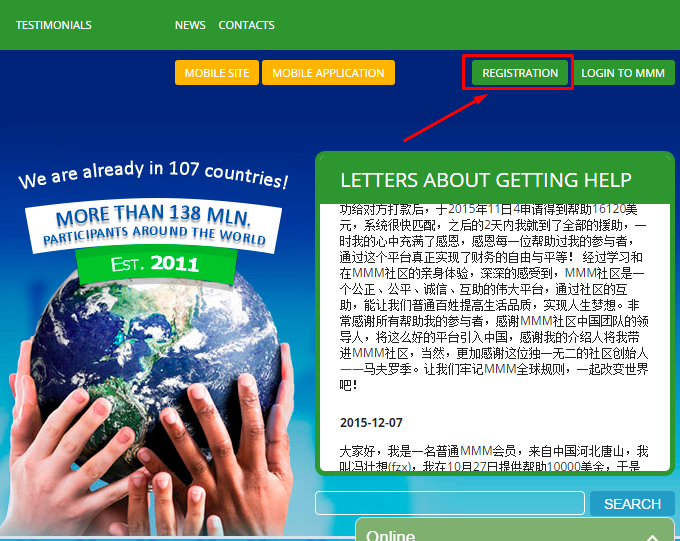
- Complete the registration form as shown in the picture below.
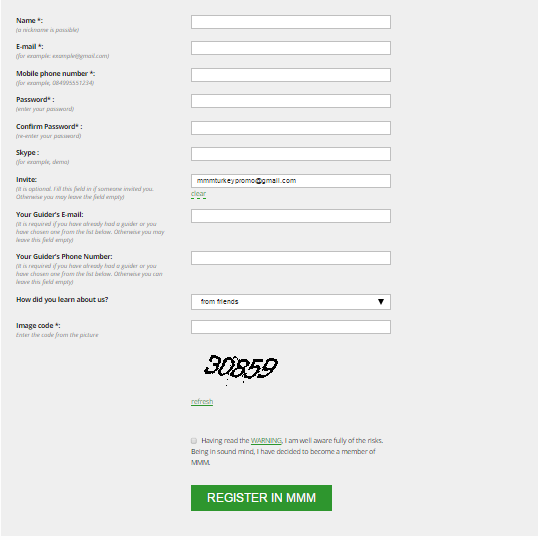
In order to register you need to provide the following data:- Name — type your name (or a nickname)
- E-mail — enter an existing e-mail. Use the servers gmail.com or yahoo.com.
- Password — invent and enter your password
- Confirm Password — type the password again
- Mobile phone number — enter you mobile phone number
- Skype — enter your skype (optional field)
- Invite — put down an invite of the participant who attracted you into the System (if there is any)
- Your Guider’s e-mail — enter your guider’s email. (Fill in this field in case you already have a Guider. Otherwise leave it empty)
- Your Guider’s Phone Number — specify your Guider’s phone number (Fill in this field if you already have a Guider. Otherwise leave it empty)
- How did you learn about us? — state how you learned about MMM
Enter captcha and press the button “Registration in MMM”.
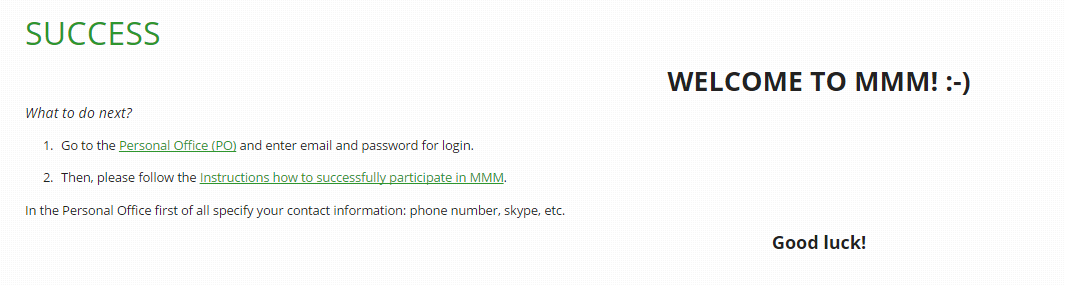
Once you have completed the required fields there will be a message appearing on your screen.
Congratulations! You have registered in the MMM Community!
3. What is a ‘Personal Office’ (PO)?
Personal Office is a personalized section of the site, available for registered members. Through Personal Office participants can:
- provide, get, and confirm help,
- enter and edit their personal contact details,
- register newcomers,
- select a referrer and a guider,
- get support from consultants,
- enter into a direct relationship with a recipient or assistance provider,
- adjust the time of delivery/receipt of help, etc.
4. How to Login to Your Personal Office?
In order to access your PO first time after the registration, you need to press LOGIN TO MMM:
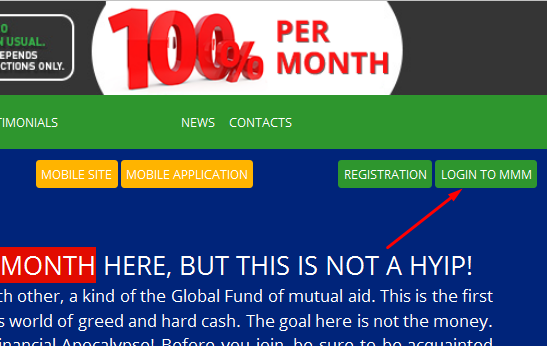
There will appear a login to system form.
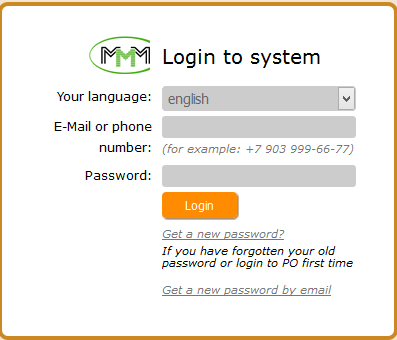
Enter your e-mail or the phone number, as well the password, specified upon registration and press “Login”.
Congratulations! You are now logged in your PO for the first time!
If you haven’t registered on your own, but have asked your guider or online consultant to do that, then log-in procedure varies. In this case:
- Open the email message from MMM, sent to your email address after the registration. If you cannot find it in your Inbox — you might find it in your Spam folder. The email message looks as in the image below:
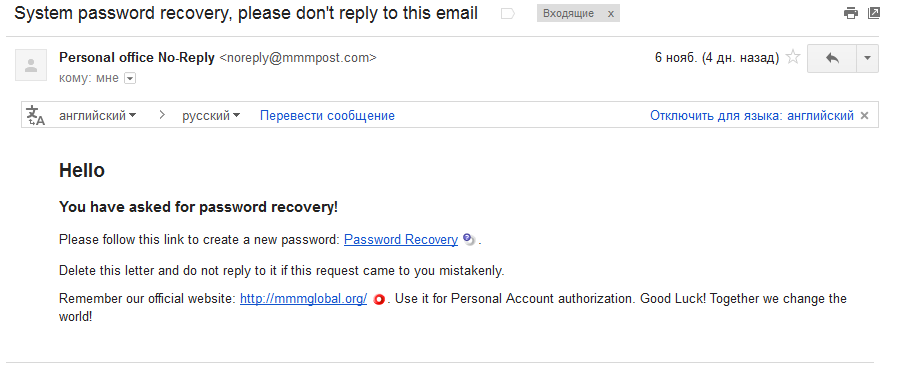
- Click the Password Recovery link.
Insert your e-mail or the phone number, as well the password, specified upon registration, and push “Login”. You will enter your PO.
5. How to Recover Your Password?
If you have lost your password or want to change it, use the button "Get a new password" when logging into your PO.
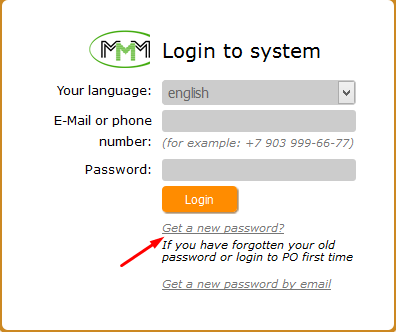
Then enter the e-mail address or the phone number which you specified during the registration in MMM. Click "Send a request":
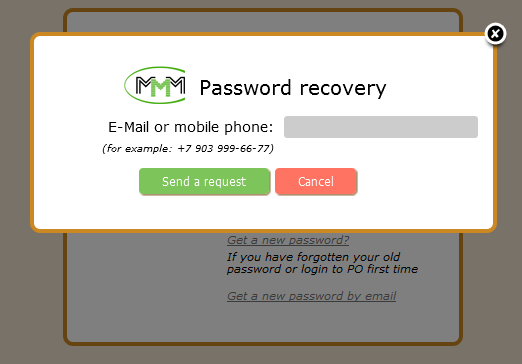
A message with a link to recover your password will be sent to the specified e-mail:
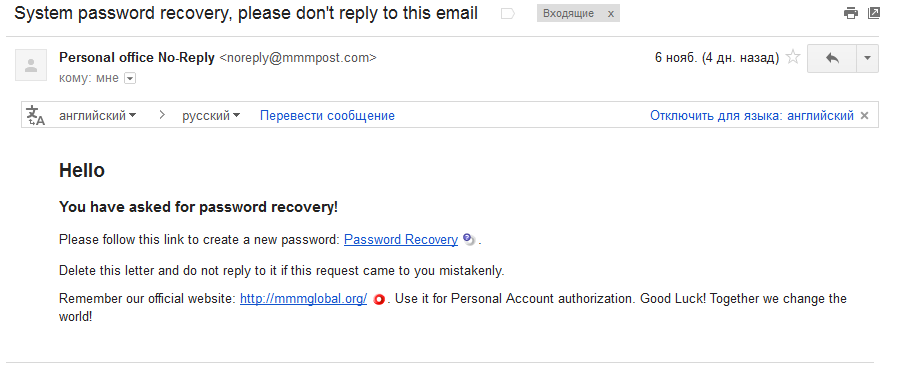
Following the link in the “Password Recovery” letter you will get to the “Change Password” page, where your Recovery code will be specified automatically.
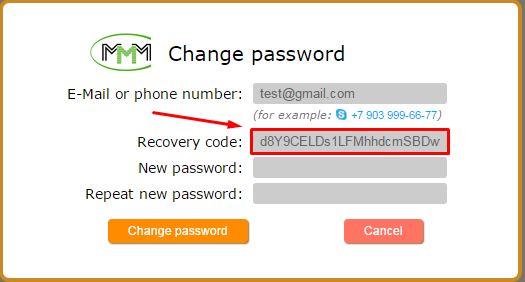
Invent a new password. Type it in the two fields and press “Change password”. Congratulations! Your password has been changed.
6. How to Add a Bank or Bitcoin Account in PO?
In order to request help in the MMM Community, you need to add a personal bitcoin account in the section "Accounts" in your PO.
- Follow the tab «Accounts».
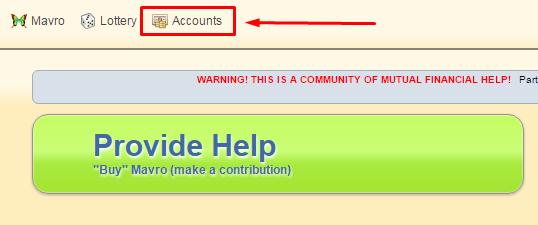
- Press «Add».
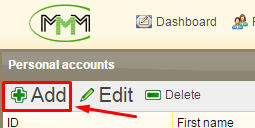
- Enter your Bitcoin account data:
— Invent the account name (for example “My Bitcoin”)
— Enter your bitcoin account address in the field “Account number” (It must be displayed in your bitcoin wallet).
— Enter your name.
— Click “Save”.
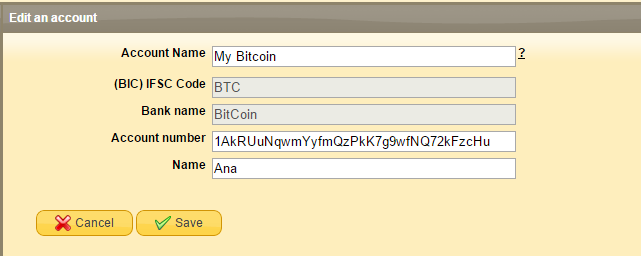
Congratulations! Your personal account has been added.
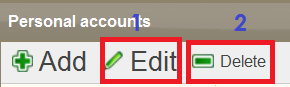
Also in the tab "Personal Accounts" you can always edit the details of your accounts (1), remove personal account (2) or add a new one.
7. What is MAVRO?
Mavro is a conventional unit for measurement of provided help to other participants in MMM. For instance, if a participant has granted 100 dollars, he receives 100 MAVRO-dollars. The amount of MAVRO in the participant’s PO shows the maximum amount of help he can ask for. For example, if the participant has 100 MAVRO-dollars, he can ask for a $100 help. The number of growing MAVRO and progressive calculation of the amount of help can be seen directly in your PO in the section “Mavro”.
8. How to Provide Help (“buy” MAVROs)?
You can provide help (acquire MAVRO) pressing the respective button and transferring money to the account of another participant.
In order to help other members of the system:
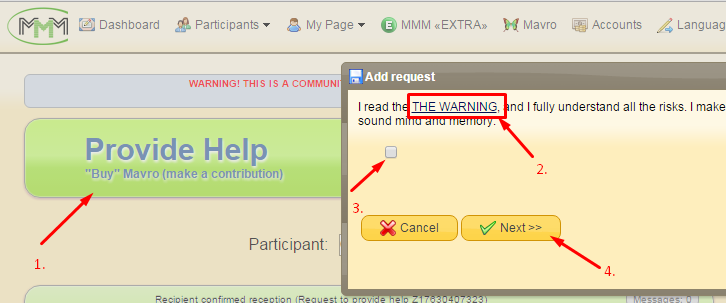
- Click "Provide help" on the desktop in your Personal Office.
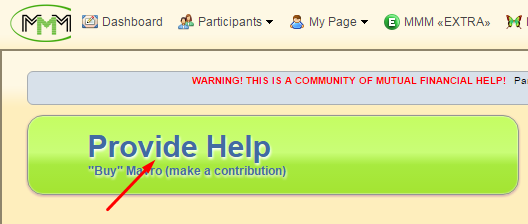
- Get to know the risks connected with the participation in the system, then put a corresponding mark (tick) and click "Next".
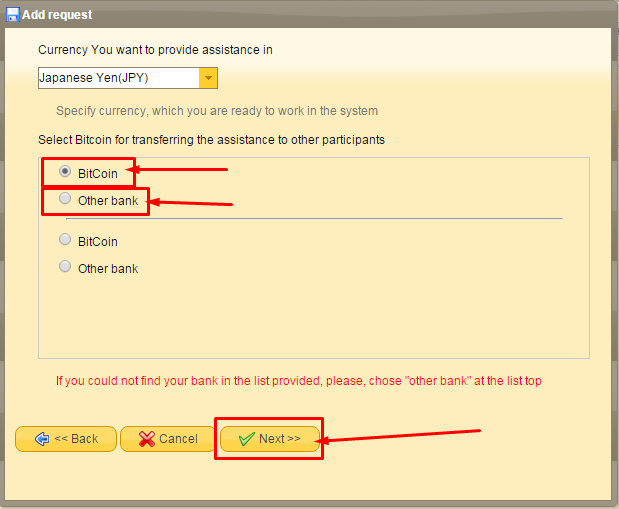
- Choose the appropriate service convenient for you to transfer the funds, and then click "Next"
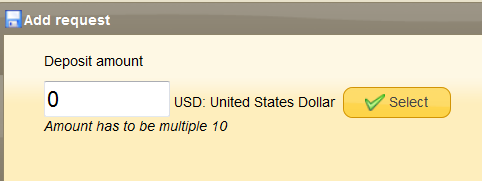
- Enter the amount you want to contribute and click "Select".
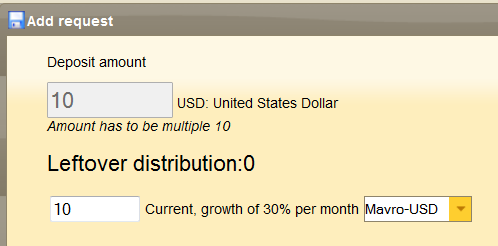
- Choose a suitable distribution for the contributed amount according to different types of deposits (if there are available at the moment)
- If you want to get a "Registration bonus" (from $ 20 to $ 100) for your first contribution — remember to tick the appropriate field (1), and then click "Next" (2).
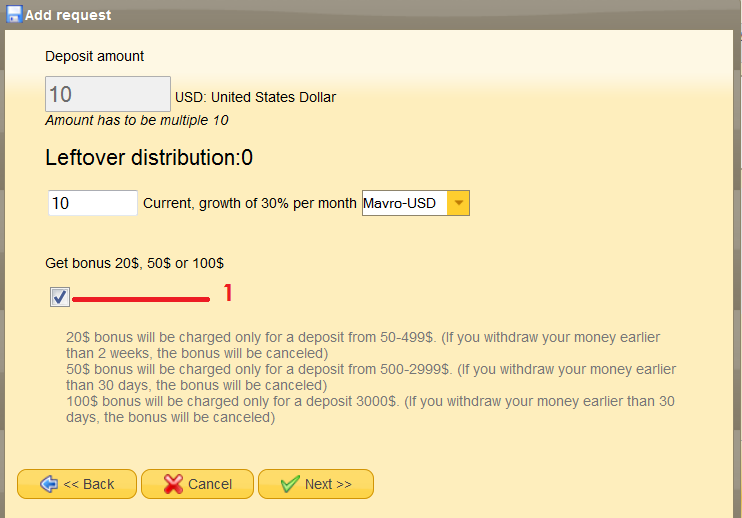
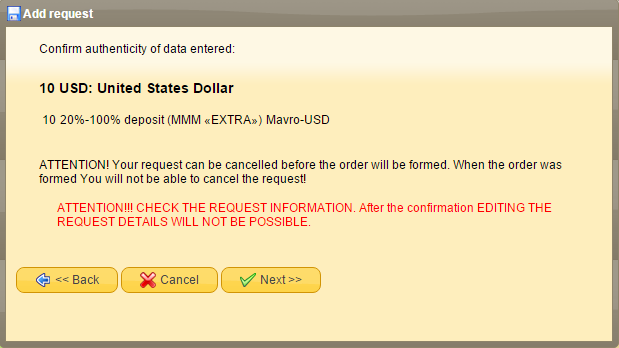
The maximum amount of a contribution is limited to $ 10 000, including the previously contributed amounts, together with interests, which will be accrued in the PO on the day of making a request. - Carefully check that all details of the “Provide Help” request are right in the window that appears and click "Next".
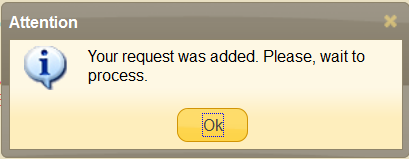
After successful completion of all these steps, you will see a notification:
The created request will be in the queue to be processed by the dispatcher (automatic program). In a short time there will be an order appearing in your desktop that you need to fulfill (to send the funds to). The orders to transfer the funds are made for the full amount of the request. You must transfer the exact amount in Bitcoins.
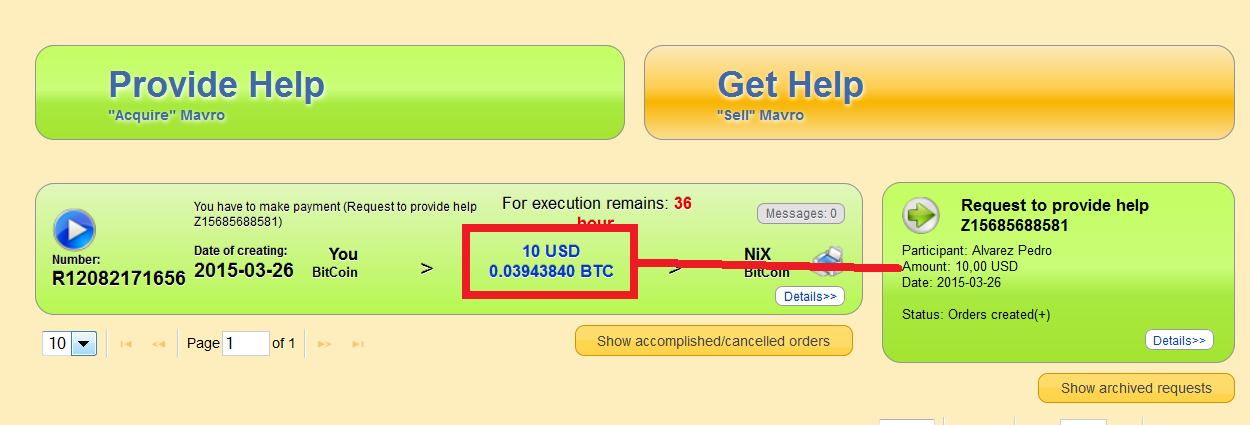
Each order includes the information about the amount of transfer (1) and the time allowed to carry out the transfer (2):

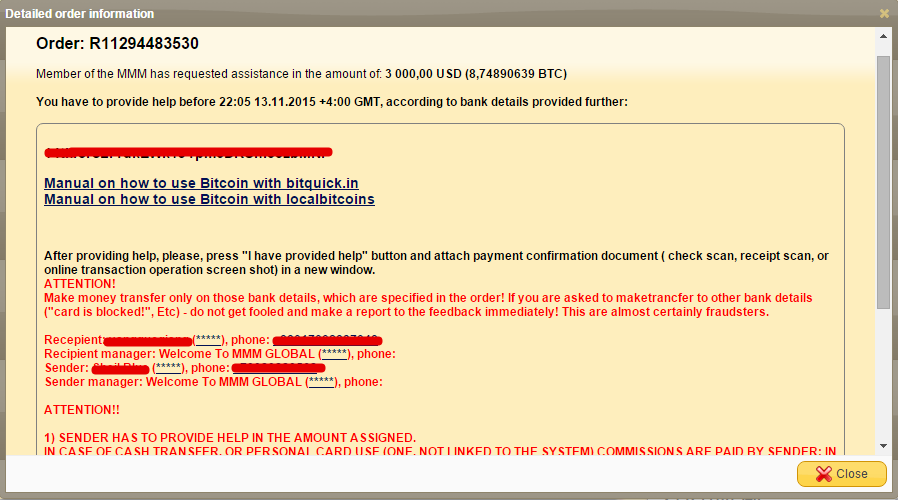
When you press the area of the order you will see details of the recipient's account, necessary to make the transfer, as well as a phone number to contact with the participant in case of unforeseen problems with the implementation of the transfer.
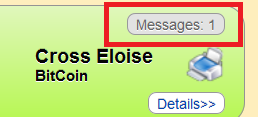
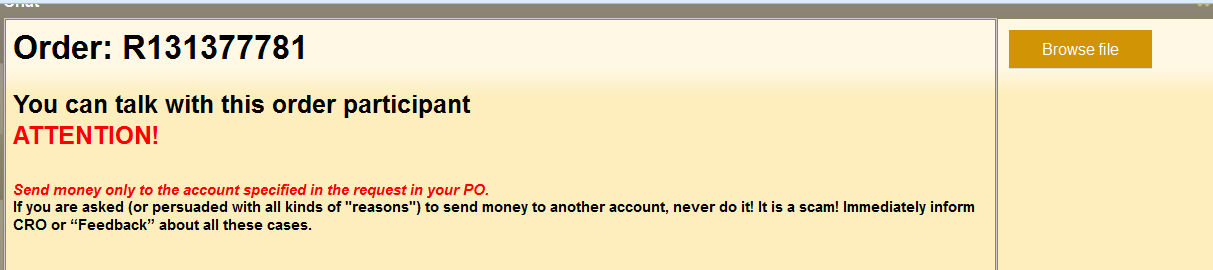
Make transfers in PO on time. If there are any difficulties with the transfer, the recipient and the sender can get in touch with each other via chat (if the phone of one of the participants is not available for some reasons).
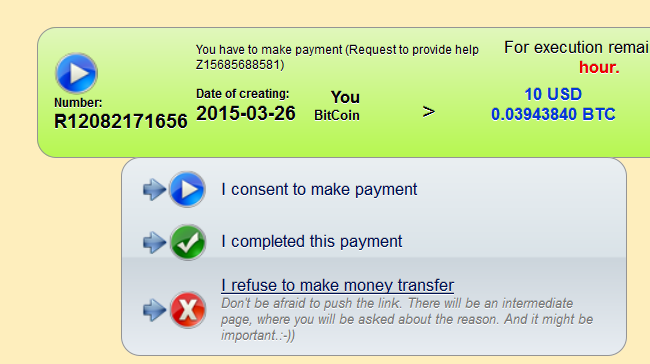
After the completing the transfer of funds, do not forget to press the appropriate button in the order. This is necessary so that the recipient will be able to confirm the receipt of funds in his PO. In order to open this menu, click on the area with white-blue arrow, and then confirm that you made the transfer with the button "I completed this payment":
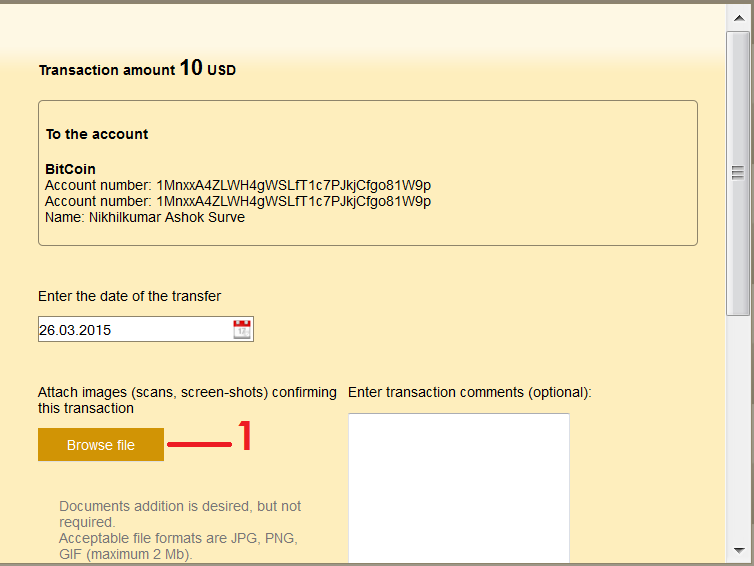
In the appeared menu, you can confirm the transfer documentary, attaching online a payment screenshot. To take a screenshot press the button PrtSc (next to the F12 button). After that the image of your screen will be sent to the clipboard. Open the programme for processing images (the simplest one is Paint). Press the buttons Ctrl and V simultaneously or press the button “Paste” in the programme menu. Save the image on your computer. In order to take a screenshot you can also use special programs like LightShot, Joxi etc.
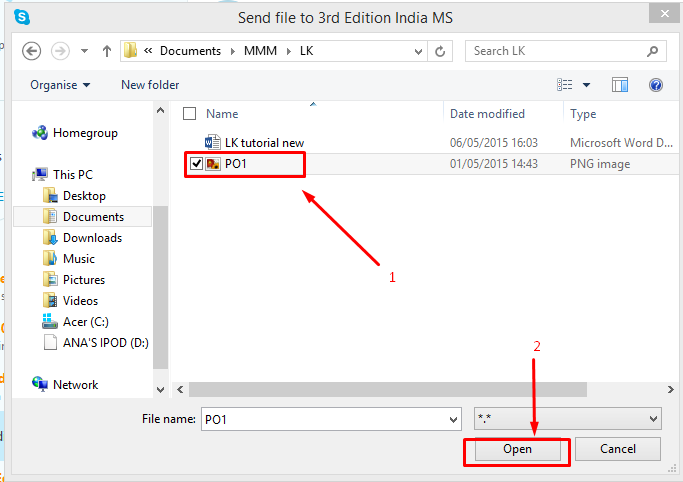
Click on the button "Browse File" (1) to choose the appropriate file on your computer (2) and click "Next” or “Open”
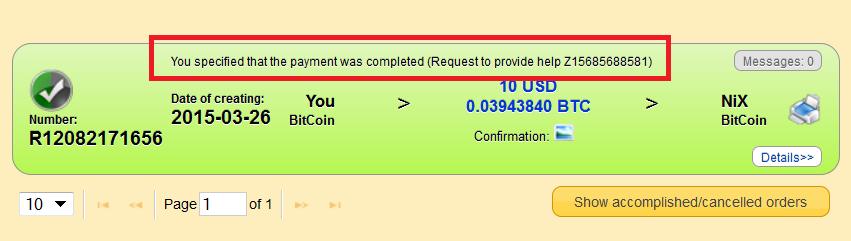
If the transfer has not been made timely, or you have refused to do the transfer without any good reason, your account will be blocked automatically. You will be notified about it in PO.
In blocked mode, the only available operation in PO is appeal to the Support team.
9. How to Fulfill Tasks in MMM Extra?
In MMM Extra program, for the growth of Mavros more than 20% (up to 100%) it's necessary to fulfill daily tasks.
To take part in the program, one needs to acquire 20-100% MAVRO EXTRA. Press the "Provide Help" button to do that.
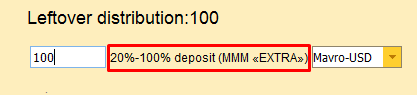
After getting EXTRA MAVRO you can start to do the tasks. For that press the "MMM EXTRA" button in your PO.

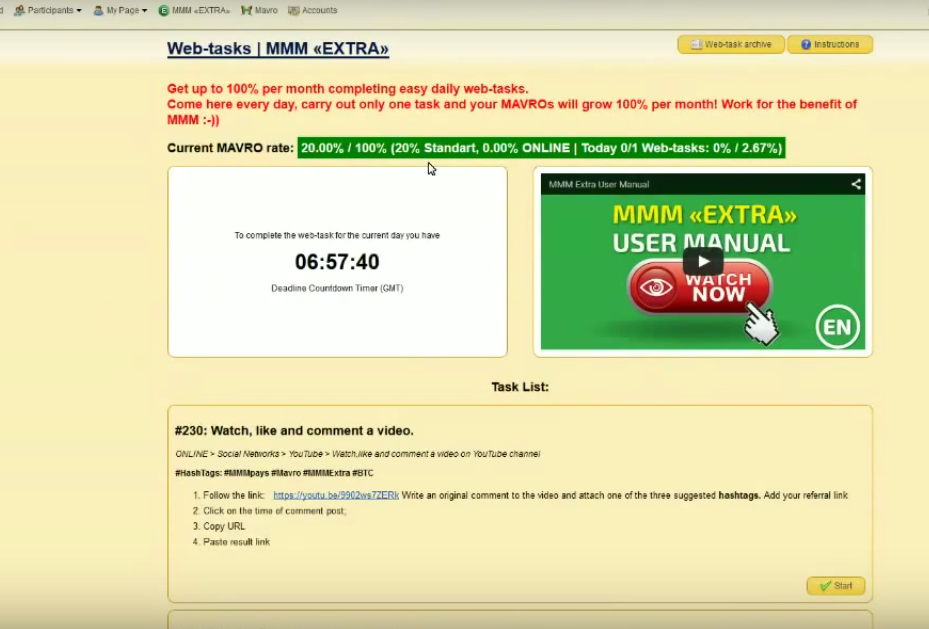
MMM EXTRA page will appear.
Instructions (in the upper right corner) show detailed information on the tasks completion.
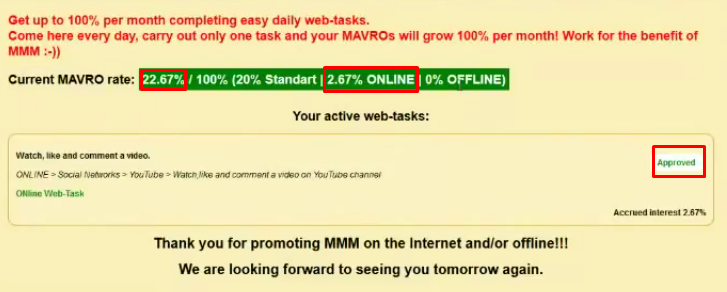
Current MAVRO rate shows how much EXTRA MAVRO you received for performing the tasks this month. It also demonstrates how many tasks you have performed today and what the growth rate of your MAVRO is.
Time-code on the left displays the time remaining: for the day, or for completing today's tasks norm.
Video on the right is a video instruction on how to use the MMM EXTRA program.
Task List shows a list of the tasks available for execution today.
Select a task from the list, and then click "Start".
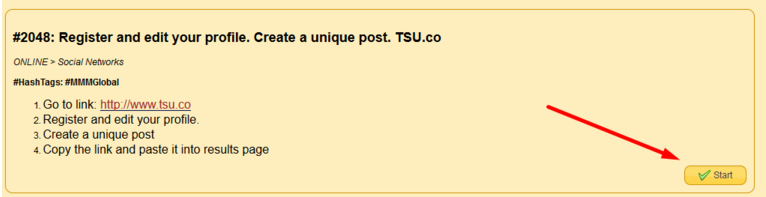
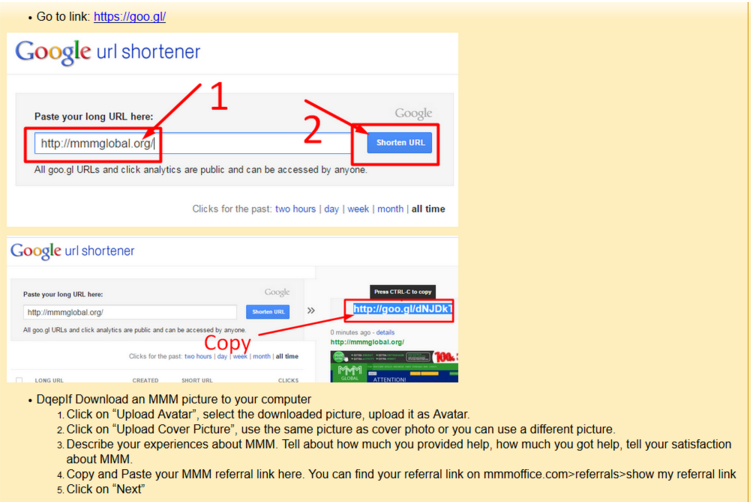
You will see a step-by-step guide (including pictures) to the task completion.
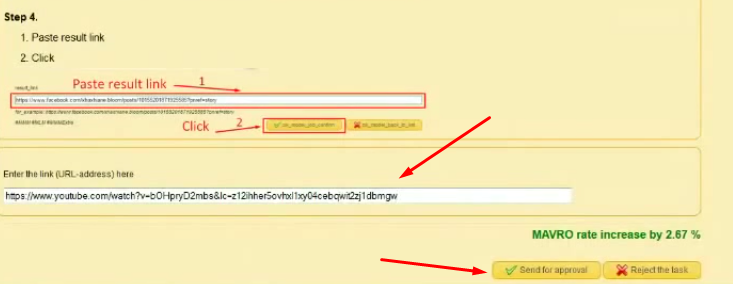
Do the task in accordance with all the instructions. Then copy the link as a proof of the completed task and enter it in the appropriate field. Then send the task for the moderation by clicking the button "Send for approval"
You will be redirected to the page that displays all of your active tasks and shows their status.
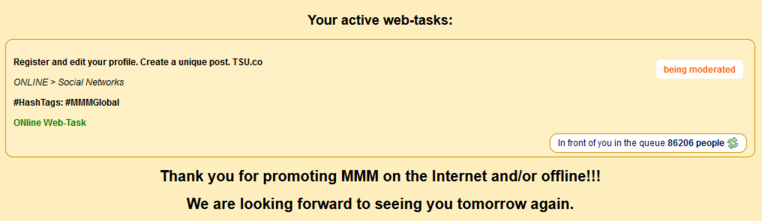
Once the moderator has checked your task, it will appear as "confirmed". You will see how your EXTRA MAVRO growth has been carried out.
10. How to Get Help (“sell” MAVROs)?
A request for getting help (selling MAVRO), as well as providing help is carried out by pressing the corresponding button on the desktop of your PO.
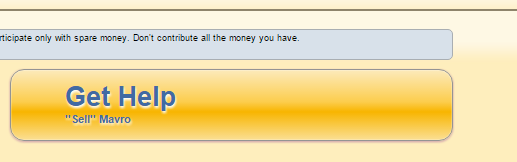
In order to sell your available MAVROs follow the next steps:
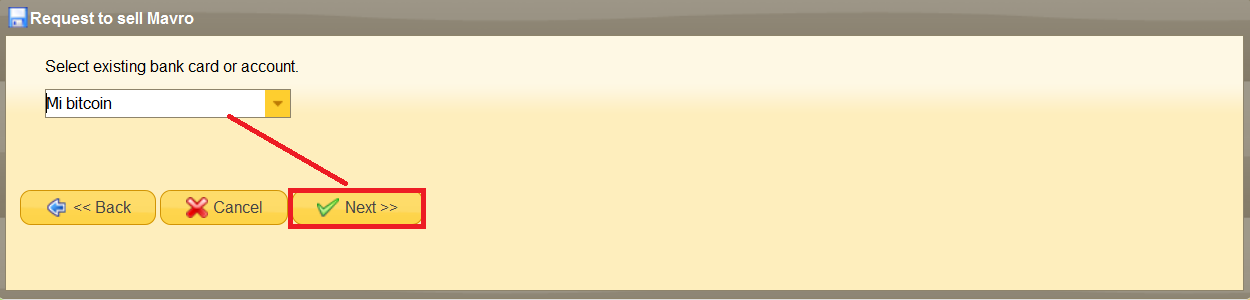
- Click "Request help". Mark you would like to choose the previously registered account to withdraw funds or add a new one if you wish, and click "Next":
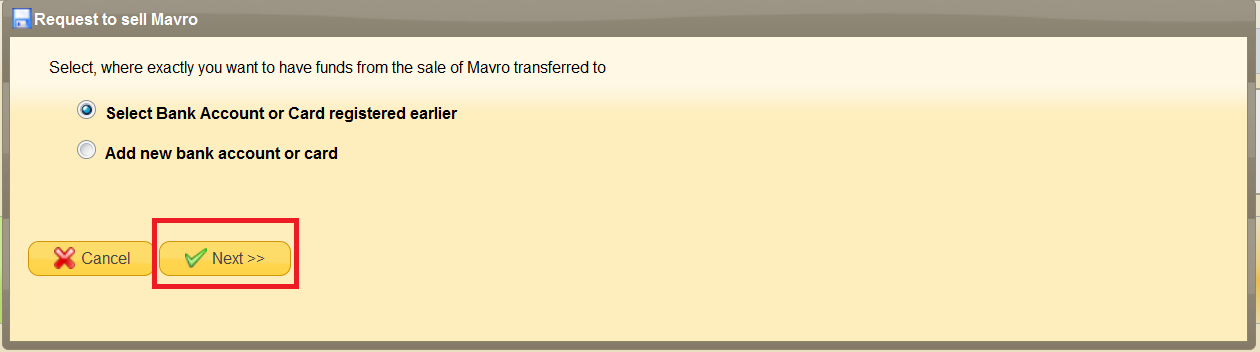
- Choose one of the previously added personal accounts you want to withdraw funds from or introduce the details of the new account, and click "Next":
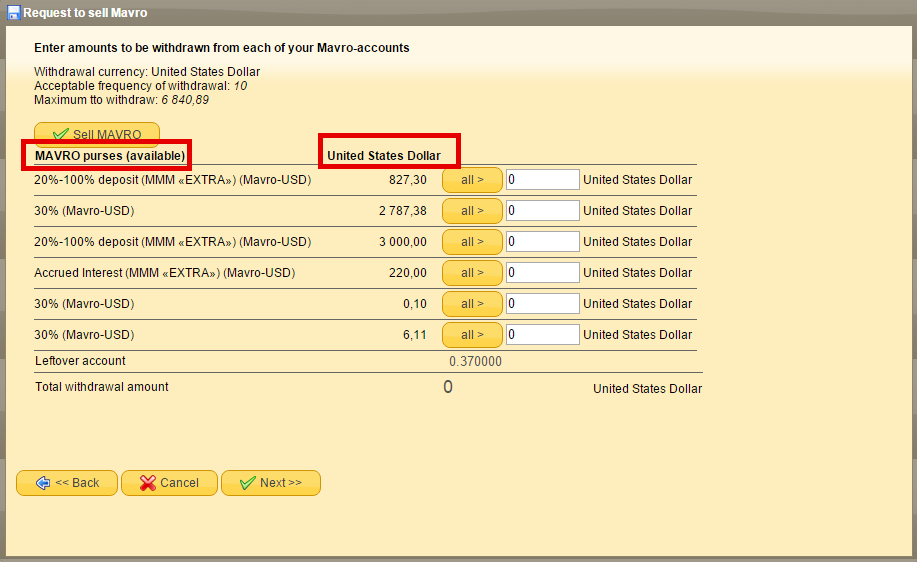
- Choose the amount of MAVROs for the withdrawal. In this menu, you can choose MAVROs for sale from available wallets (1), see the amount of MAVROs (2) and their value in real currency (3). Enter the requested amount in the appropriate field and click "Next":
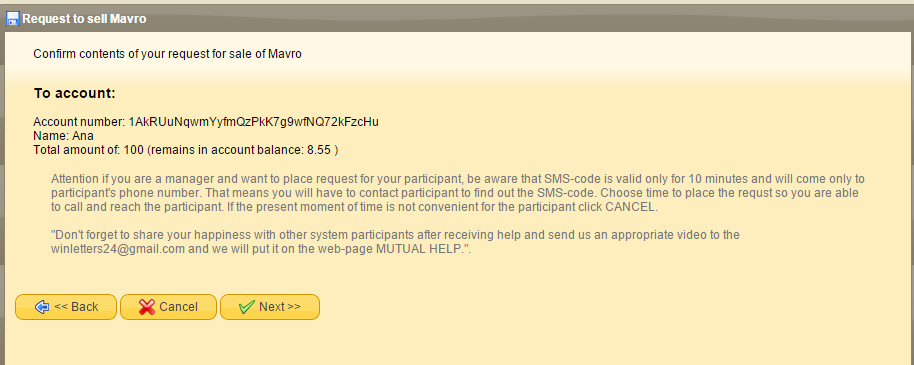
- Check once again the details are accurate in order to withdraw money, and if all the details are correct — click "Next".
Then the created help request appears on the desktop in general requests list.
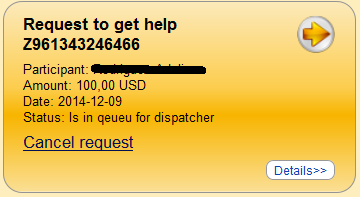
When clicking on the window with the active request for help, you can open the menu of request and verify details once again (1) depending on the request for the withdrawal as well as see the amount of sold MAVROs (2):

After creating the request for the withdrawal wait for orders to be displayed on your Dashboard where you will be able to see the details of the participants who will transfer you the funds.
As soon as the order appears on your Dashboard it will be in Green Color. After the person has confirmed in his MMM Account that the funds are transferred — make sure to check your wallet — if the funds are there — just confirm the receipt of the funds.
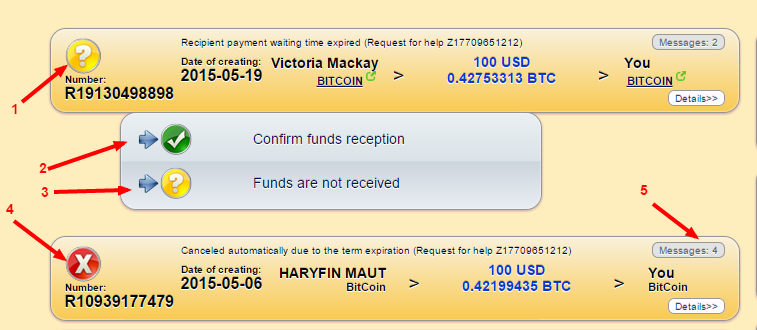
However, if the participant confirms having sent the funds but you didn’t receive the money, then after some time the icon will become yellow with a question mark (1) . If you click on it there will be two options for you — either to confirm the receipt of funds (2) or to state that the funds are not received (3).
In such case after the investigation of CRO the icon will become red with a cross (4) , which means that the order wasn’t completed. The sign will become red with a cross inside as well when the sender doesn’t confirm that the funds were sent.
One way or another, the dispatcher will create another order for you with another participant to send his help to you.
Confirm the order only after making sure that the funds were received on the bank account or bitcoin wallet!
If the funds are well received by you and you confirm the receipt of funds then the icon will turn Green! The help has been successfully provided!

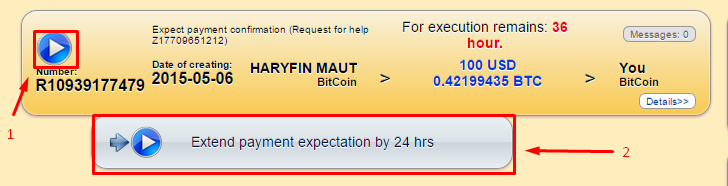
Keep in mind that you can extend the expectation of payment for a day (24 hours) if needed. Let's say, a person does not have time to meet the requirements (48 hours). You can give him or her additional time to accomplish the order.
Always report to the support team if you notice unusual activity by using the support button in your PO.
11. How to Get in Touch with the Support team?
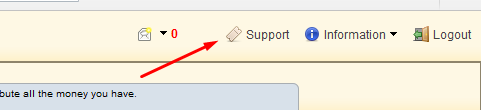
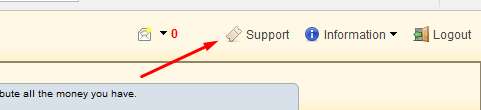
Click the button Support in your PO.
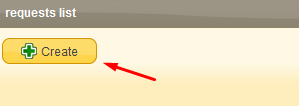
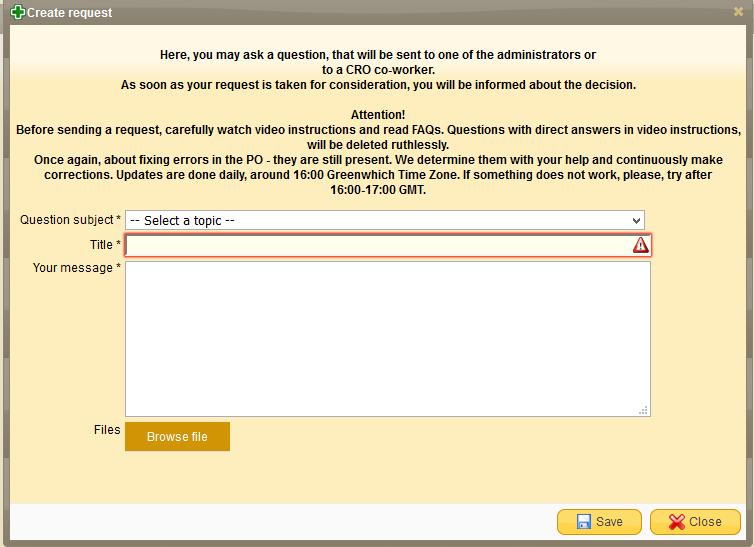
Click on the button "Create", select the appropriate appeal category, specify your question as shortly as possible, attach any relevant proofs (if necessary) and then press "Save":
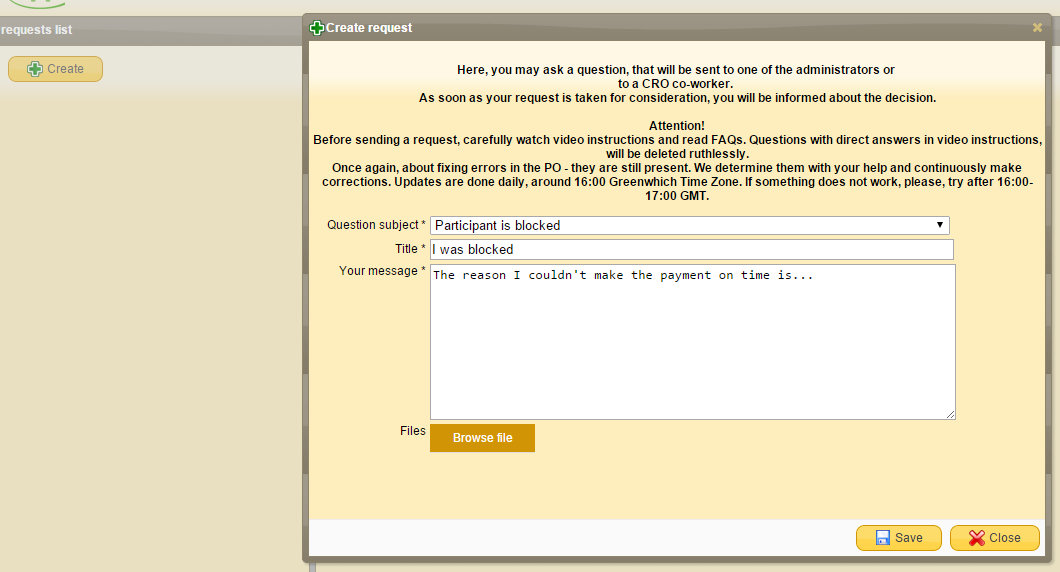
You can create appeals on any issue. The created appeal (ticket) will be displayed on the list of requests (tickets), and then you will have to wait for the answer from the operator.
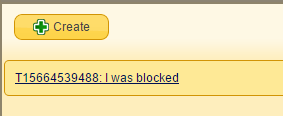
After some time the operator will respond to your appeal and an appropriate notification will appear near the ticket.
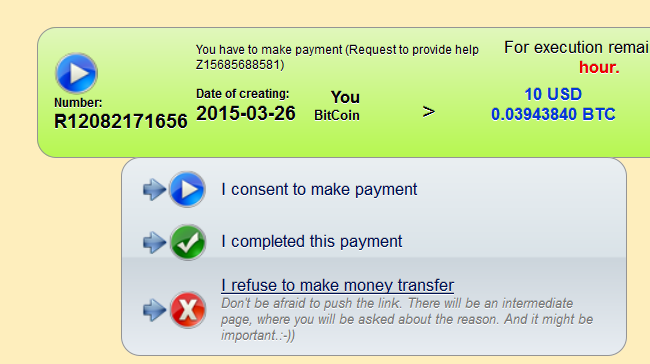
In order to avoid the situation of being blocked always make sure to check your PO and email daily after you have formed a Request to Provide Help. In this way you stay updated in case there is a new order created for you. If you cannot complete the order for any reason — make sure to write the reasons for it after clicking on the button “ I refuse to make money transfer”.
12. How to Write TESTIMONIALS?
As soon as the assistance was received (receipt money for the "sold' MAVRO) the participant has to write a "letter of happiness" using the subsequent placement in the section “Testimonials” on the MMM Website.
There will be a new window appearing straight after confirming the receipt of funds as shown below. The instructions of writing the letter of happiness are already included in the new window — read them carefully and write your text.
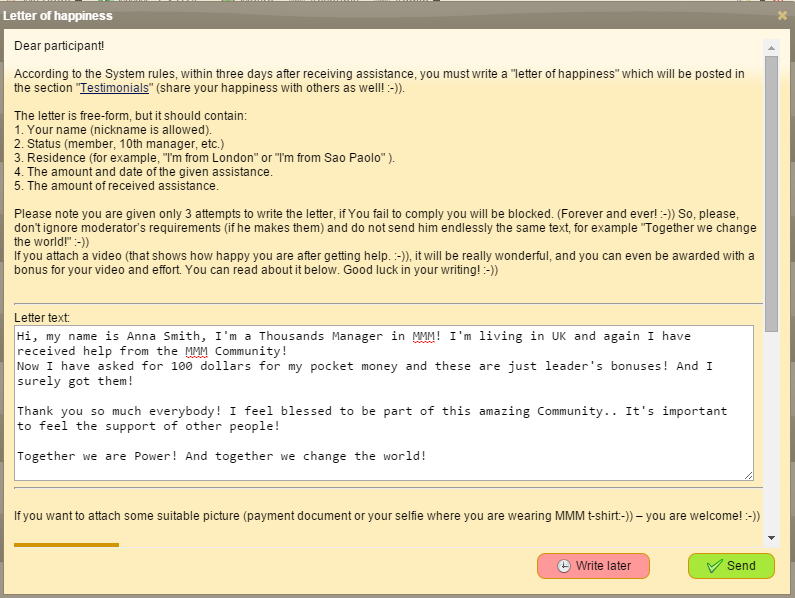
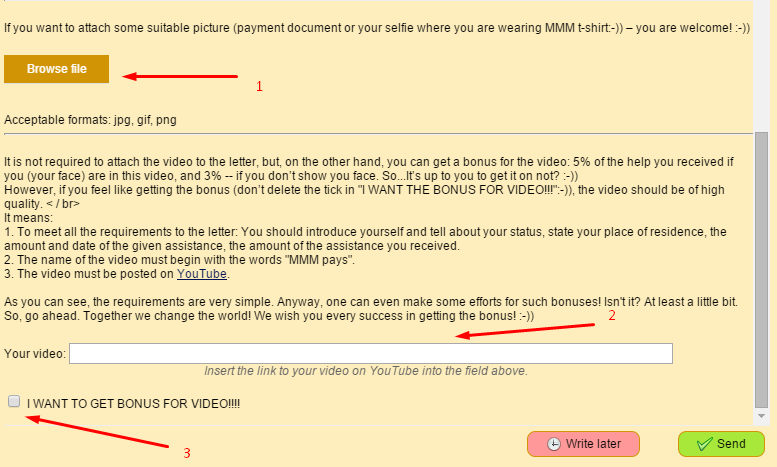
If you wish you can attach a screenshot (1) or a picture confirming the receipt of funds. As well the last but not least: you can make a video where you can share your happiness of receiving help and post the link in the required field (2). There is usually a bonus given for that — all the instructions for that are already given in the window of the “Letter of happiness” so make sure that the box which asks for the bonus is ticked (3), only in this way you will receive the bonus… after the video has been approved by moderators.. Bonuses and gifts are always pleasant to receive!
Then press “Next”.
13. Who are Referrers and Referrals?
A referrer is a participant of the Community who invited another participant. A referral is someone who was invited. If you registered a new participant or he registered himself by your invite or referral link, then you’re a referrer, and he is your referral. In PO in the section “Participants”, you can see the list of your referrals. The referrer gets a referral bonus of 10% every time the referral provides assistance to others. Any newcomer who came through your referral link will be directed to the registration page of MMM’s website, where he will be automatically considered your referral..
14. What is a Referral Link?
The referral link enables to attract new members through the Internet. A person coming to the system through your referral link will be automatically redirected to MMM registration page. After registering he automatically becomes your referral. Afterwards, you can receive referral bonuses from all contributions he/she makes. A referrer can’t be changed, however in case you registered without referral link you can indicate your referrer manually during 7 days from the moment of the registration.
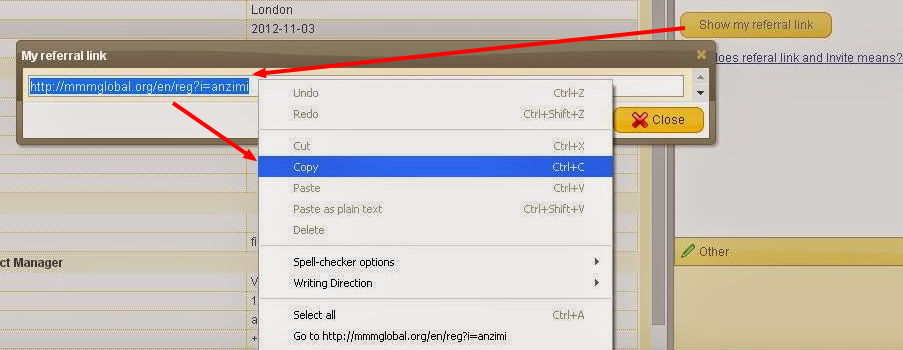
The referral link can be found in PO in the “My page” section, in the “Referrer” inset or in “Participants-Referrals” subsection.
Press the button “Show my referral link”, which will open a new window, and copy all the text in the field.
15. What is an “Invite”?
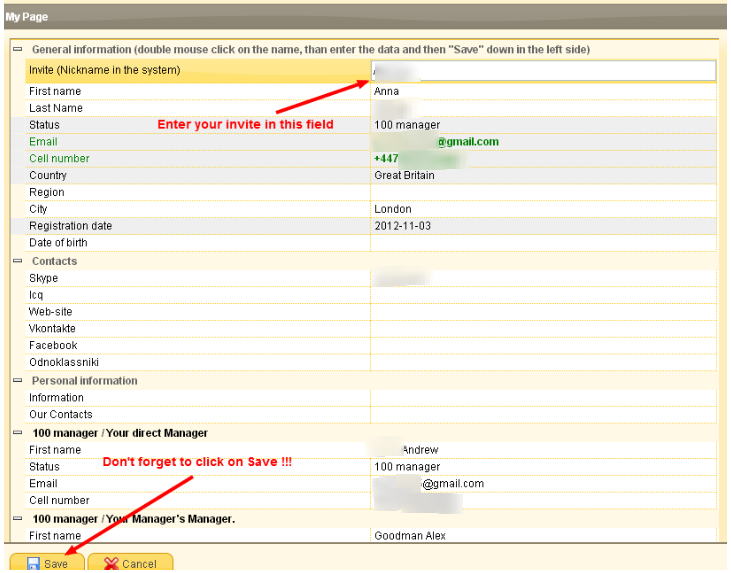
This is a verbal invitation code from a participant of MMM, owing to which he can invite other people into the Community and get a referral bonus.
For this purpose a newcomer writes an invite he got from an inviting person in the appropriate section of the registration form. From that moment on, he becomes your referral. To get a personal invite, go to PO into the section “My page” and specify the meaning word for it.
To attract new members by using the invite there are many possibilities depending on the personal creativity and imagination. The most popular of them are:
- handing out business cards;
- distribution of leaflets and booklets;
- participating in the online forums for advertising and shopping sites, personal sites and blogs;
- supporting any distributed promo-advertising materials with the text “by registering in MMM, please use my invite (indicating it further)”;
- opening of MMM clubs in your city;
- charity activity on the behalf of the MMM Community.
16. Who are Guiders, Trustees and Trustors?
The participants choose their guiders on their own. The guider has access to the PO of his/her participant. If a participant does not want to make operations in the Personal Office (create requests, process orders), he/she can convert his/her guider into his/her Trustee who will do it for him/her. The participant who has transferred the rights to administrate the PO will be called the Trustor..
If you are a Guider/Trustee and referrer of the participant at the same time you will get only referral bonuses. If you register a new participant as a referral, your guider will be automatically assigned as his/her guider.
There are two ways to establish Trustor-Trustee relationship:
a) The Guider registers a participant and, during registration process, states in the PO that he/she is his/her Trustee.
b) The participant indicates in PO himself/herself that he/she makes the Guider his/her Trustee.
Of course, at any moment the participant can change his mind and refuse the Trustee’s service.
Making your guider your trustee is very easy:
- Go to the subsection “My page” in your PO;
- Choose the subsection “Guider” on the right;
- Click on “Make my guider my trustee”
and confirm the option.
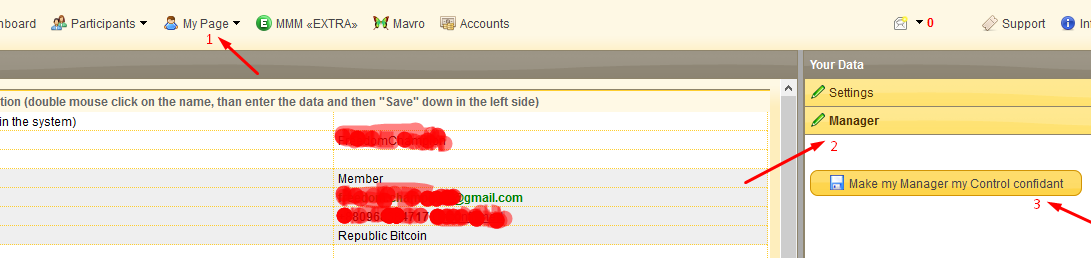
That’s it. Now you can use your guider’s help while administrating your requests in the PO. At any moment you can change your mind and start to administrate your PO personally.
In order to protect from abuses from the Trustee’s the most important operations (change of account information for withdrawal, creation of a withdrawal request, confirmation of getting money) are conducted only through a confirmation code sent in SMS to the Trustor.
Besides, when creating “Get Help” or “Provide Help” requests, the trustor will also get the corresponding sms. Other than that, when creating “Provide Help” request, the sms will include the recipient’s account information.
The Trustee can go into PO of the Trustor right from his/her PO and then the same way can come back easily into his/her personal PO.
17. What Types of Bonuses Can You Get?
In addition to 20-100% MAVRO growth per month participants can get various bonuses:
- Registration Bonus +20$, +50$ or +100$. When registering participants are granted with the value from $20 to $100 that is given to the full-fledged participants making their first contribution.
- +$20 will be credited to you if your contribution is from $50 to $499. The bonus is frozen for two weeks. If you take out your contribution earlier, the bonus will be cancelled.
- +$50 will be awarded to you, if your contribution is from $500 to $2'999. This bonus is frozen for a month.
- +$100 will be given to you if your contribution is $3'000 and more. This bonus is frozen for a month as well.
- Referral Bonus +10% of the amount of the contribution made by each new member (referral) you invited into the System. You may take it out two weeks after the referral has provided assistance and got his MAVRO confirmed. You will get the bonus from each referral’s new contribution, but only for “new” money. For example, if the referral provided help of $1000, you will get a $100 bonus. If after that he took out $1500, and provided additional help of $2000, then the bonus will be accrued only to the input-output difference, i.e. $1500 (1000-1500+2000=1500). As a result the bonus will be only $150, and not $200.
- Guider’s bonuses +5%, +3%, +1%, +0.5%, +0.3%, +0.1%, +0.05%, +0.03%, +0.01% (for all other lower levels there’s also 0.01%). There are multi-level bonuses and the number of levels is unlimited. As in case with a referral bonus guider’s bonuses are also added to “new” money only.
- 5% — for those who specified you directly as their guider.
- 3% — for those who selected their guiders the participants whose guider you are.
- And so on.
The bonus for video is frozen for 1 month, and if during this period you decide to remove the video, the bonus will be cancelled. - Bonus for the video in "testimonials" +5% or +3% of the amount of the received help.
- 5% of the amount of the received help will be accrued if the video will show your face and voice.
- 3% of the amount of the received help you will get if you provide the video confirming the withdrawal, which will not show you personally. You will just demonstrate on the screen of your MMM PO and the evidence of the received help.
18. Where Can you Post your Referral Links?
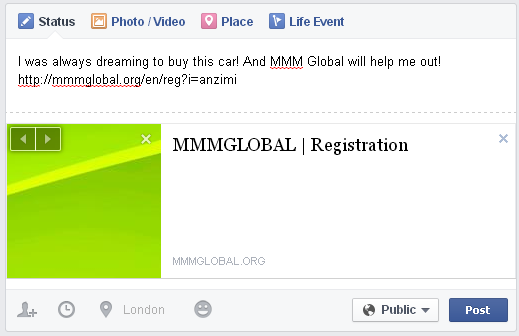
Use referral link in different web resources, social networks, text messages, signatures, etc.
The following are some simple examples of the referral link posts:
Face book! You have a wide area for creativity — messages, posts, comments, photo comments.
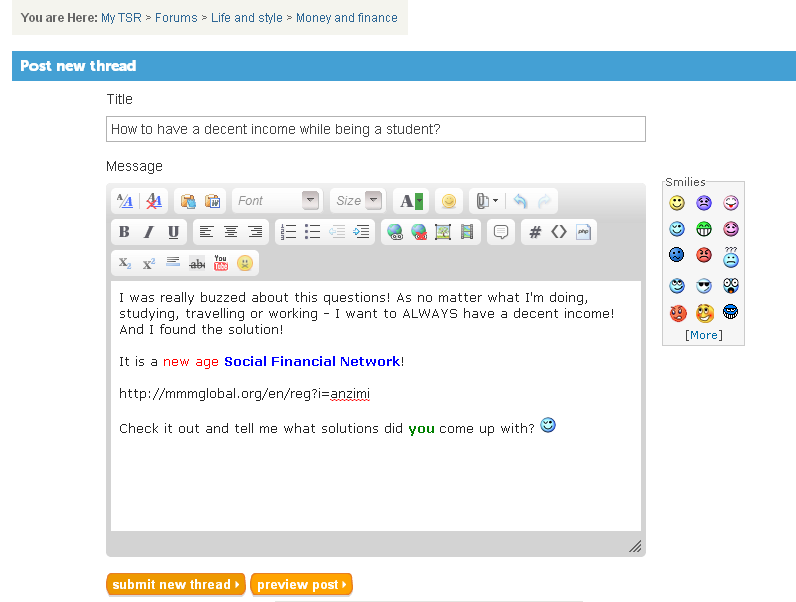
Forum. Almost at any forum you can create your own post and comment on anybody else’s post.
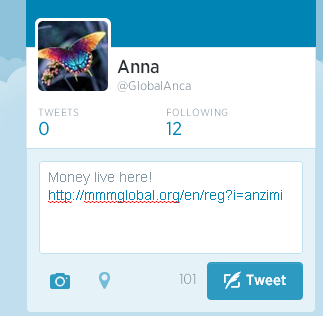
Twitter. Here are a variety of ways as well how you can promote your referral link.
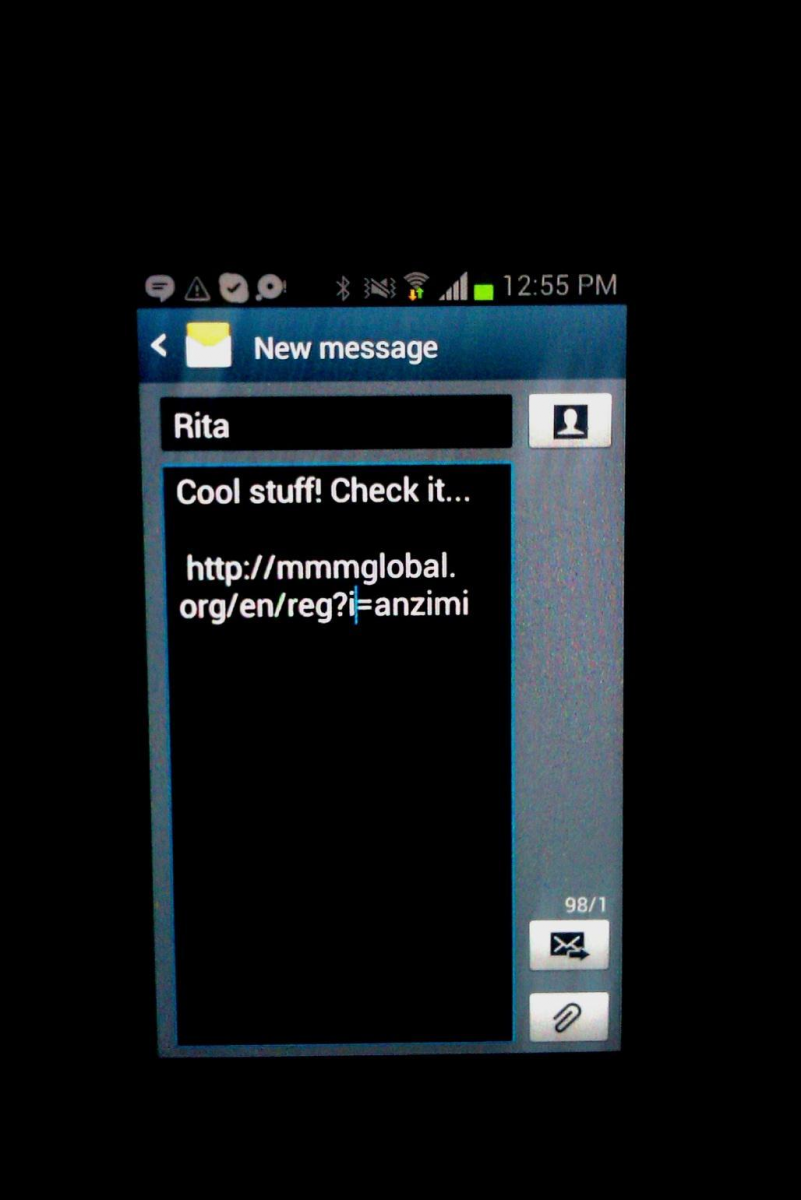
You can also spread your link through SMS/MMS.
You can post your link anywhere.
19. What Regulations and Recommendations on Safe Participation are There in MMM?
To keep track of frauds and monitor the due development of the system, in the interests of MMM there CRO-administration works, which makes sure that the actions of the participants are honest. If you became suspected by the CRO in committing any manipulations, they have the right to require you to scan your passport and record the video explaining your actions. Don’t worry; there is no unlawful punishment in MMM. If your actions arouse suspicion and your guilt is proven, you will be excluded from the Community. Hard decisions can be taken, but they are all for the benefit of MMM. Remember that all participants in MMM is a single entity, therefore CRO is not working on behalf of individual personalities, and solely in the interests of the whole Community.
In case of your blocking for suspicious activity, you need to write to the Support and attach a photo or an ID scan to confirm your identity. In case the participant hasn’t violated the rules there’s nothing to worry about. He will be unblocked and the ban won’t affect his MAVRO growth in anyway.
Regulations on relatives
If the referral is your relative, the sum of his/her contribution has to be less or equal to yours. For example, you made a contribution of $10,000 and invited your relative into the Community. The relative can’t provide help which is more than $10,000. If your relative wants to contribute more money than you did, he/she should register through the registration form on the official site without using your referral link. It means that your relative shouldn't be your referral to have the right to make contribution greater than yours. The participants who invent various suspicious schemes in order to get more benefits will be blocked until further fact-finding.
Multiple and identical accounts
Multiple account (multiple registrations) — registration of several user accounts by one person and/or application of one Bitcoin wallet by several people.
If you are a beginner and still haven’t understood all functions of your Personal Office (PO) you can make your manager your control confidant to help you with your account. Never share your PO email & password. It’s for your security to follow the descriptions below.
MMM is the Community where people trust and help each other. Therefore it uses a principle — “only one account for one person”. Accordingly, each participant should have own unique Bitcoin wallet and/or bank account.
Punishment for creation of multiple accounts
A participant creating multi-accounts should be blocked. He is paid a face value (the amount of provided help minus the received amount) of all his registered multiple accounts.
Punishment for using referral schemes
Referral scheme is when one person or group of people register several times that one or group of men acting in collusion could have more benefits. As a result all the participants become blocked and get paid a face value.
Punishment for applying one account in several user accounts
If different members’ accounts use the same Bitcoin wallet (except for Bitcoin exchange services), then such accounts are also considered as multi-accounts. Thus they are being blocked with a possibility of the face value withdrawal.
Other conditions of accounts blocking:
- Refusal from the execution of a pending order.
- Untimely providing help.
- Recipient doesn’t confirm funds receipt. In this case there is moratorium imposed until transfer’s circumstances are clarified.
- Multiple accounts are registered on 1 PC.
In this case there is a declaration of moratorium until identity of accounts owners is clarified and fraudulent schemes are detected. - Payment of orders on different accounts from one Bitcoin wallet.
- Registration and signing in to PO from different accounts, but with one IP-address.
In this case there is a declaration of moratorium until identity of accounts owners is clarified and fraudulent schemes are detected. - Repeated log in to different accounts from one PC — making orders, funds receipt confirmation, etc.
In this case there is a declaration of moratorium until identity of accounts owners is clarified and fraudulent schemes are detected. - Inactivity in PO over a period of 2 months.
Answers to frequently asked questions on accounts blocking:
Question:
In case there is one local area network for two PCs, is it allowed to enter the web site from two accounts?
Answer:
Yes, it’s.
Question:
Is it possible to use a mobile phone to log in to the PO through the application (APP), with a 4G traffic and manage an account?
Answer:
Yes, it is.
Question:
I often travel on business, and there is a frequent change of my IP address, though I have only one account. Can my account be blocked in such a case?
Answer:
In this case your account won’t be blocked.
20. What are Possible Problems a Participant May Face?
Question:
What should I do if the recipient doesn’t answer or confirm the transfer?
Answer:
If you encountered this problem, it’s necessary to contact MMM Support team. Please create a ticket, choose the relevant subject, specify the problem and await its settlement. Don’t worry if you are right in this situation. The Community will find in your favor and you will be able to continue participating in MMM.
Question:
I’ve created help request however the participant doesn’t transfer the funds.
Answer:
The participant has 72 hours to carry out the transaction. If you don’t receive the transfer within 72 hours, the Community will find another participant to provide help to you.
Question:
The participant hasn’t transferred me the money but he/she indicated that the transfer was accomplished and attached a screenshot as a proof.
Answer:
Get in touch with the MMM support service describing the situation. If the participant really didn’t send the money, he will be blocked and you’ll be provided a new remitter. Keep calm.
Question:
I want to register in the Community but it’s written that my phone number or e-mail is already registered in MMM.
Answer:
It means that phone number or e-mail already exists in the database of the Community. Try to indicate another phone number or e-mail during the registration.
Question:
I can’t see Captcha. What should I do?
Answer:
Try to refresh the page using F5 (in some cases CTRL +F5). If nothing changes try to use another browser or check the configurations of the browser you currently use (the browser should support JavaScript and display the images). Sometimes Captcha can’t be seen when the website is under maintenance. If nothing helps, ask a guider to register you. In that case you don’t need to enter any Captcha.
Question:
Why don’t I get referral and/or guider’s bonuses?
Answer:
Referral and guider’s bonuses are credited only for “new” money. For example, if your referral has provided help of $1000, you will get $100 bonus. If after that the participant withdraws $1500 and then provides help of $2000 the bonus will be credited only for the difference between the contributed and withdrawn money it means for $1500 (100-1500+2000=1500). Finally, you will get $150 of bonus but not $200.
Referral and guider’s bonuses for the unconfirmed provided help are shown in the PO in the section “MAVRO”. Confirmed referral and guider’s bonuses are summed and appear in the section “MAVRO” in the same line.
In some cases referral and guider’s bonuses can be credited with 2 days delay. If the bonuses aren’t credited within 2 days contact the support service.
Question:
I’ve forgotten/ I want to change my password but I don’t receive any letter with password recovery. What should I do?
Answer:
Check “Spam” folder, maybe the letter is there. If you really haven’t received the letter, request it again. If it doesn’t help, get in touch with your guider and ask him to change your e-mail. If you don’t have any guider, contact the on-line consultant at the website. Your identity will be verified and your e-mail will be changed.
Question:
I’ve created a ticket to the Support Service but I haven’t received any feedback. I’m worried...
Answer:
Don’t worry. The operators of the Community support service have a lot of tasks due to the MMM development. Your request remains in the queue. You should wait a little bit.
Question:
I’ve completed the registration but I haven’t received the letter. What’s happening?
Answer:
Check the “Spam” folder, your letter might be there. If it isn’t, try to request password recovery at the page mmmoffice.com. Nevertheless, if the problem hasn’t been solved, register using another e-mail.
Question:
I haven’t got the bonus for testimonials. Why?
Answer:
Your testimonial probably hasn’t been approved by the moderator yet or the moderator has rejected it. When rejecting a testimonial, the moderator usually leaves comments and explains the reasons. If the moderator has checked the testimonial and there aren’t any comments and bonus hasn’t been credited, get in touch with the support service.
Question:
My MAVROs have been confirmed but I can’t withdraw them. Why?
Answer:
In order to withdraw your MAVROs they must be confirmed and unfrozen. Every type of MAVROs has its color. Green Mavros are available for the withdrawal, blue ones — are frozen, red ones — are unconfirmed. If your Mavros are green but you don’t manage to create “Get Help” request within 24 hours, contact the MMM support service.
Question:
I can’t enter my Personal Office.
Answer:
Sometimes, PO can be unavailable for the maintenance works. Wait a little bit and try again later.
If you enter your e-mail and password but can’t enter the PO, it means your account isn’t still registered in the system or has been removed (for example, for inactivity). Try to complete the registration again using the same or different data.
If you can’t enter your PO because you forgot your password, use the password recovery procedure.
Question:
My account was hacked! What steps are to be taken?
Answer:
Change the password immediately! Inform the support service and your guider about it. If the intruder has already created help request to sell your Mavros and the order has been created tell about it our on-line consultant and get in touch with the remitter asking not to transfer the money.
Question:
I want to buy/sell МАVROs but the orders aren’t created.
Answer:
If the orders for purchasing Mavros aren’t created, you should wait as the number of those who want to provide help is higher than the number of those who want to get it. You should only wait.
When orders to sell Mavros aren’t created, get in touch with the support service. They will clarify the situation.
Question:
The requisites of the beneficiary are incorrect. Where should I transfer money to?
Answer:
Contact the beneficiary and tell him/her about it. If you can’t get in touch with the receiver or the beneficiary rejects to take any steps please inform the support service.
Question:
My Mavros in the PO became negative. Why?
Answer:
Negative MAVROs appear when you are credited Penalty. Penalty can be assigned for the money received above the sum indicated in the help request. For example, you got more money than you requested. In this case the DCR will check the information and the Penalty will be credited for that sum of money.
Penalty can be also credited for the violation of the rules of the Community. If you don’t agree with the Penalty you got contact the MMM Support Service.
21. Does MMM Have a Mobile Application?
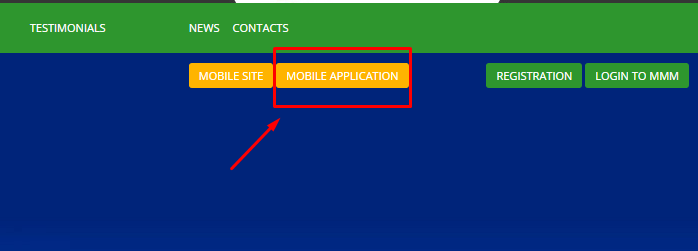
Some participants have no stable access to the computer. Besides, using computer isn’t always comfortable while we always have mobile phones with us. That’s why MMM programmers have elaborated a special mobile version of the website — it’s easy to use via smartphone (read news, testimonials etc.) and mobile application that helps to take different actions in the PO. It was created for ordinary people but not for professionals so the application is multi-functional and is easy to use.
You can can find the Mobile Application on the official website http://mmmglobal.org/.
22. What to Do if a Browser Blocks the Website?
If the website has been blocked for any reason, try to open it with another browser. If it doesn’t help, use the extensions that enable to avoid blocks such as Browsec, Hola, friGate, CDN, ZenMate.
FriGate and ZenMate are applications easy in use and compatible with the most popular browsers — Mozilla Firefox and Chrome.
Download FriGate — https://fri-gate.org/
Download ZenMate — https://zenmate.com/
You can also use TOR browser allowing to avoid blocks.
Download TOR — https://www.torproject.org/download/download.html.en. Here you will also find the respective instructions.
23. How to Use Google Authenticator?
Now, along with your password, there is one more authorization method to enter your PO. For additional security there can be used Google Authenticator. This feature is optional which is able to provide strong protection of your account.
Google Authenticator (GA) is an application for smartphone (IOS, Android, BlackBerry) generating a code needed to access your PO. Which can be used even without internet connection.
Install GA App on (smartphone with android OS, laptop, PC, Mac or iPhone/iPad).
How to install Google Authenticator app.
=> Android devices
Requirements
Google Authenticator is available for the Android devices running version 2.1 or later.
To Download app:
- Visit Google Play page.
- Enter the search term Google Authenticator.
- Download and install the application.
=> iPhone, iPod Touch или iPad Requirements
You can use Google Authenticator app on the devices iPhone, iPod Touch or iPad version iOS 5.0 or later.
To download app
- Enter App Store.
- Enter the search term Google Authenticator.
- Download and install the application.
App configuration
- Get the key (GA) in the PO. The instructions are described below.
- Open Google Authenticator app on your mobile.
- Click "+".
- Click Time based (tag 1)
=>PC
- Install the "Mozilla Firefox" Web Browser on Desktop or Laptop.
- Then click on this Link www.marketplace.firefox.com
- Then type "Google Authenticator" in the search box & press enter.
- You will find "Google Authenticator App". then Click on "Free".
- You will find One Pop up window in the top left of the browser. It will ask — Do you want to install "Gauth Authenticator" from this site (marketplace.firefox.com)? Click on "Install".
- Google Authenticator App will be installed automatically.
- You will find the icon on the Desktop.
How to set up GA in your PO:
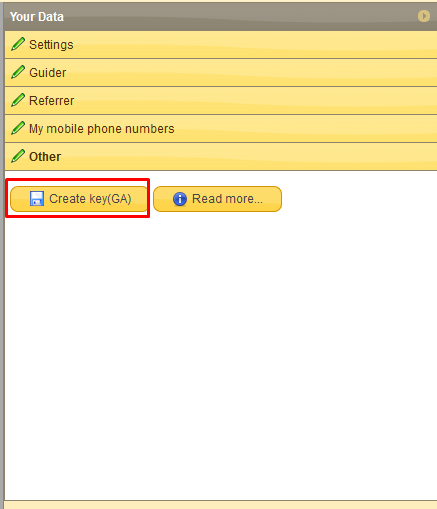
- Enter in the section “My Page” and click the button in the right column of your PO
“Other”
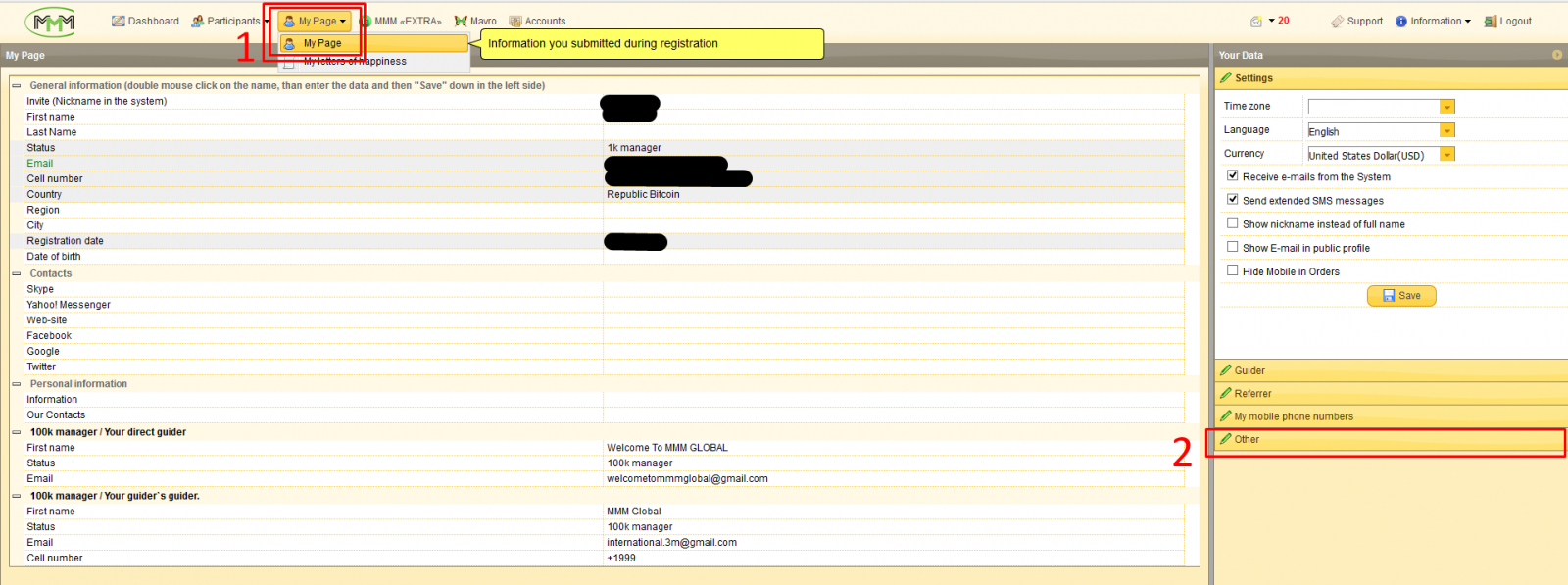
- Then click the button “Create key (GA)”
- After that you will see a window with the key code
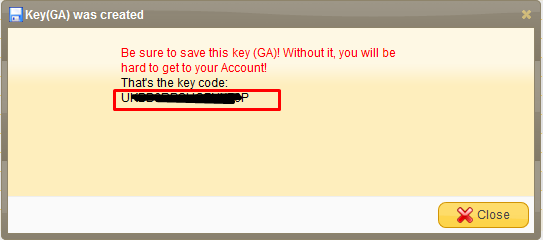
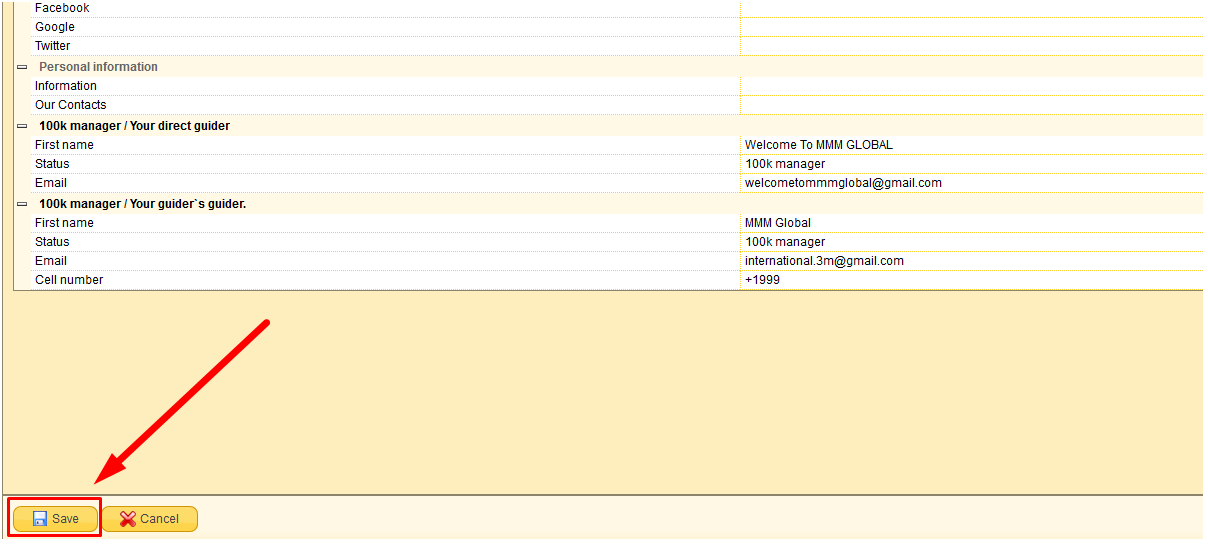
IMPORTANT! Write down this key code on the paper, be careful. You will never see this key code again! This code you will need to create GA code in GA App. - When you will be sure that the key code was written down — click “Save” button
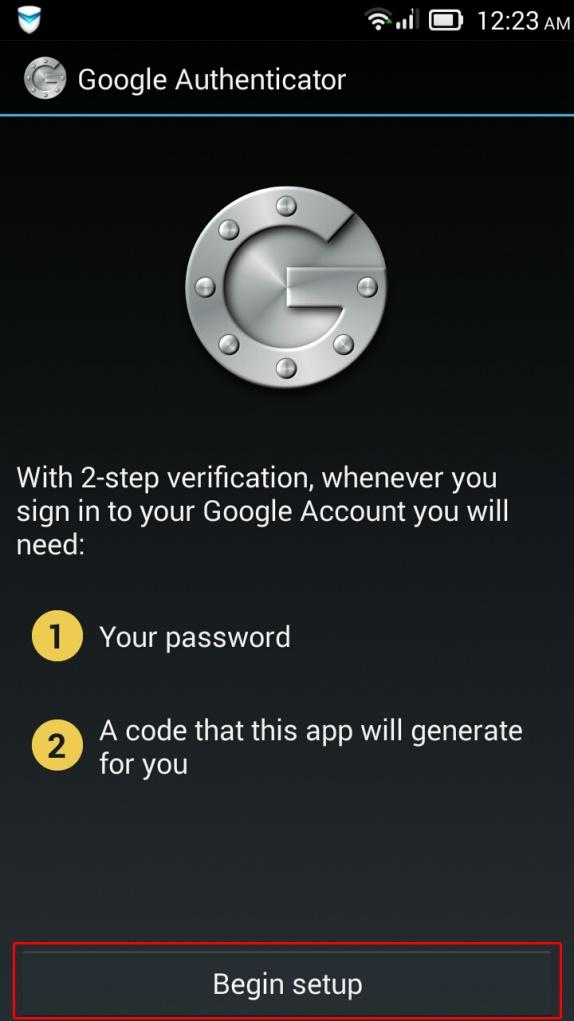
- Open GA app on your device and push “Begin setup”
Then choose “Enter provided key”
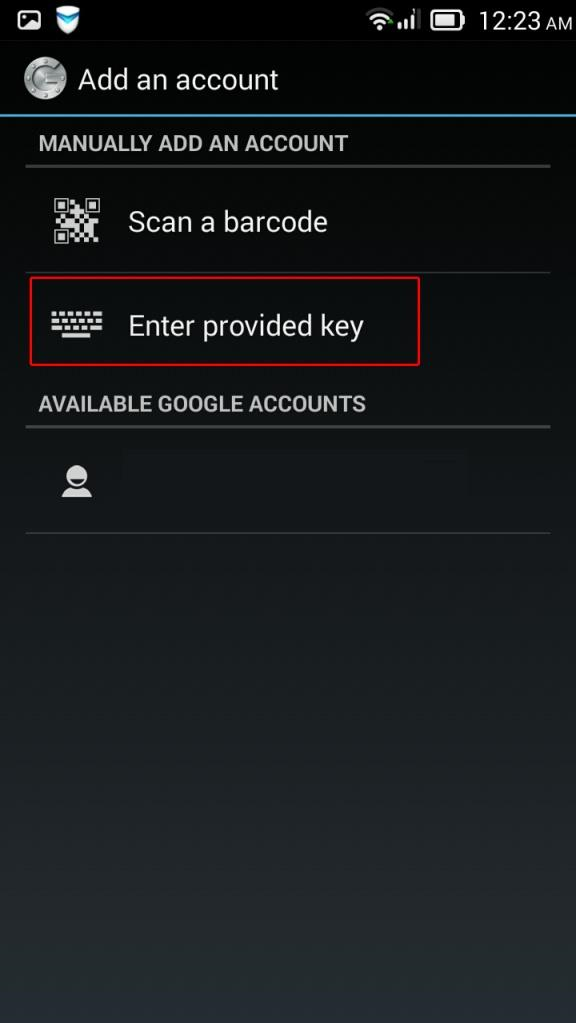
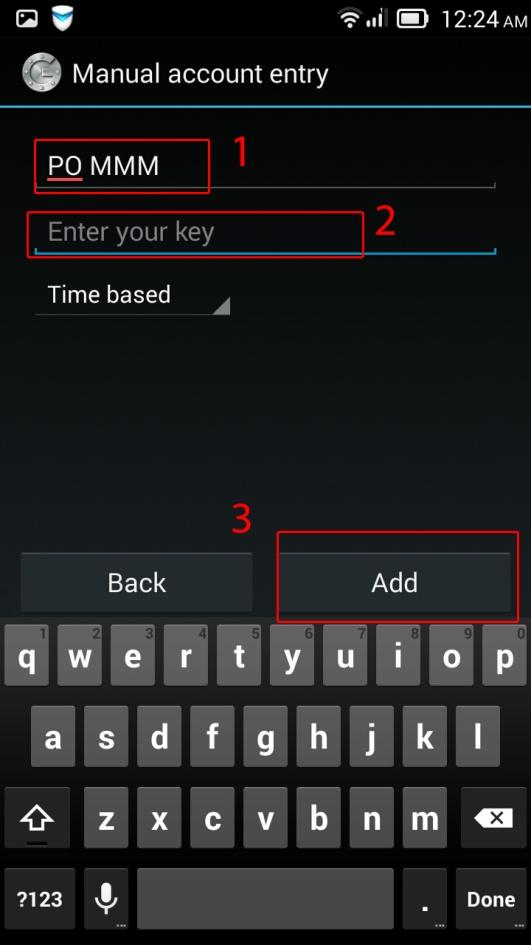
- In the next step you need to enter name of this account (field 1 on screenshot) — for example “MMM PO”, you can choose any other.
Then, in the field 2 (see the screenshot) you need to enter the key, that you wrote down in step 3.
After that push “Add” button.
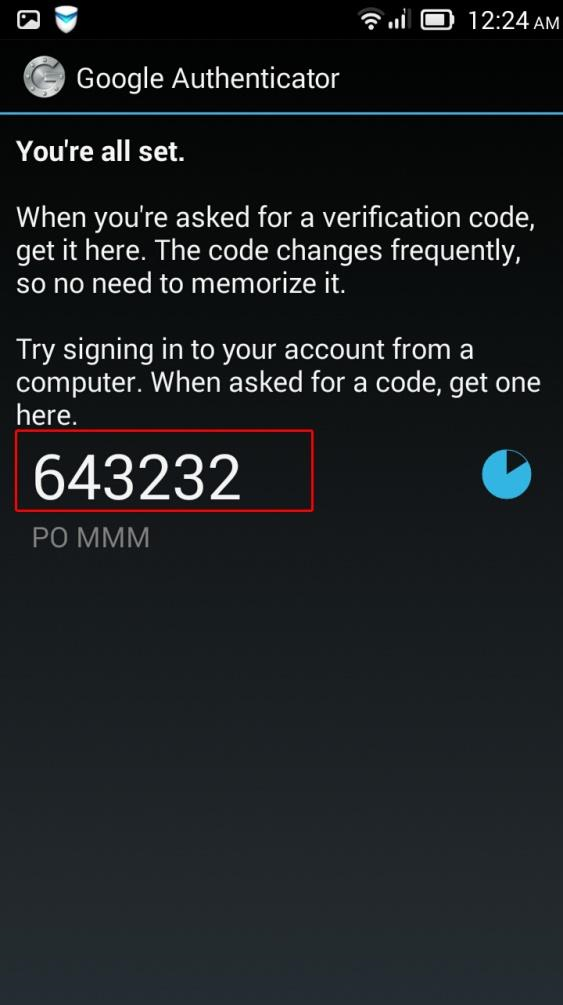
- Setup is finished and you will see this screen
This code will change every 30 seconds, so you don’t need to keep it in mind.
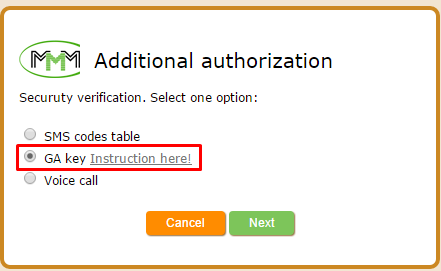
- When you will enter the PO, System will ask you to choose the method of the Additional authorization. Choose GA key
- On the next screen enter the 6-digit code, generated by GA App on your device and click “LOGIN”. You have to keep up with 30 seconds, until the code in app has not been changed
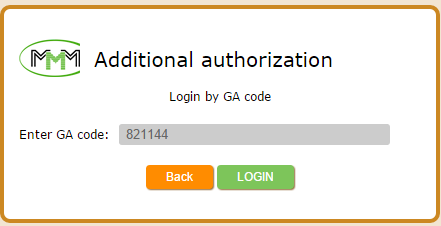
- If you see the message that code is wrong,
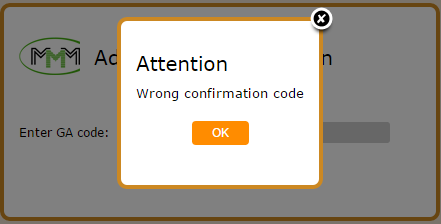
but you are sure that you did not make any mistake — try to go to the settings of GA App on your device and choose “Time correction for codes”. Device should be connected to the internet to do this.
If you want to delete GA from your PO, you should go to “My Page” section and click the button in the right column of your PO:
“Other” 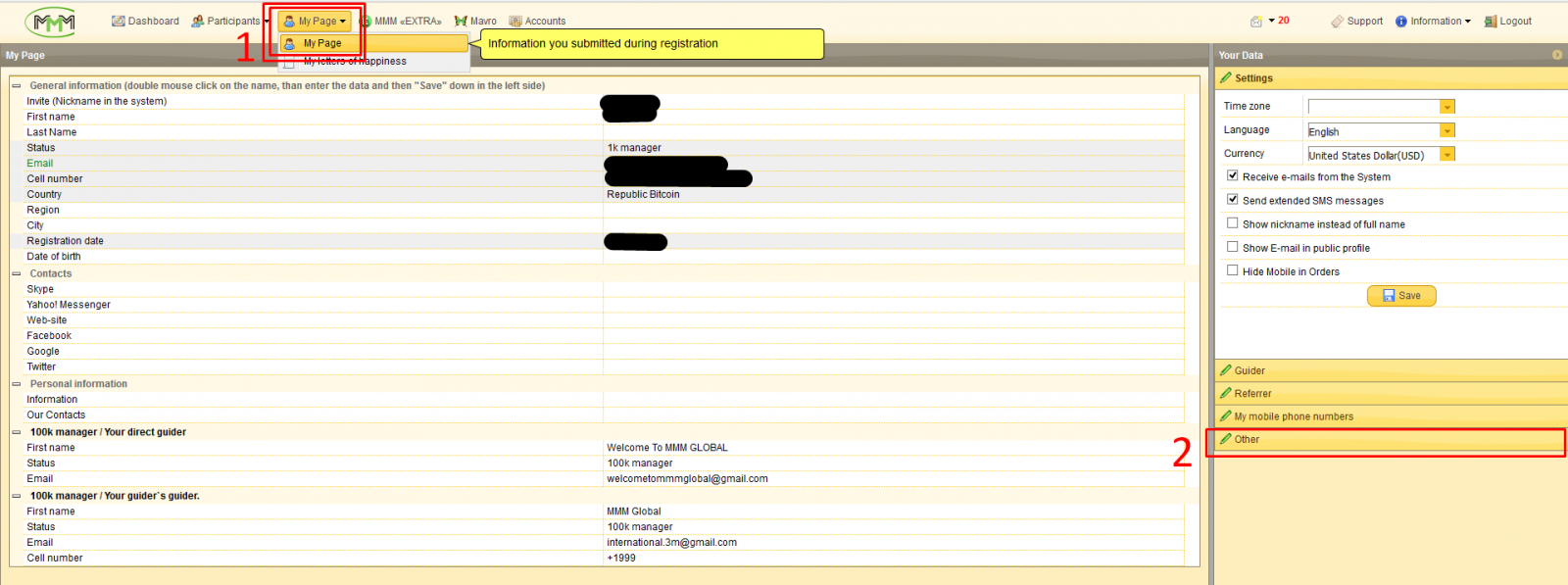
Then push button “Remove the key (GA)”
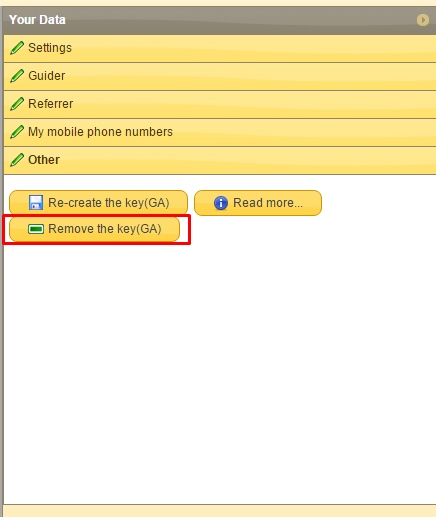
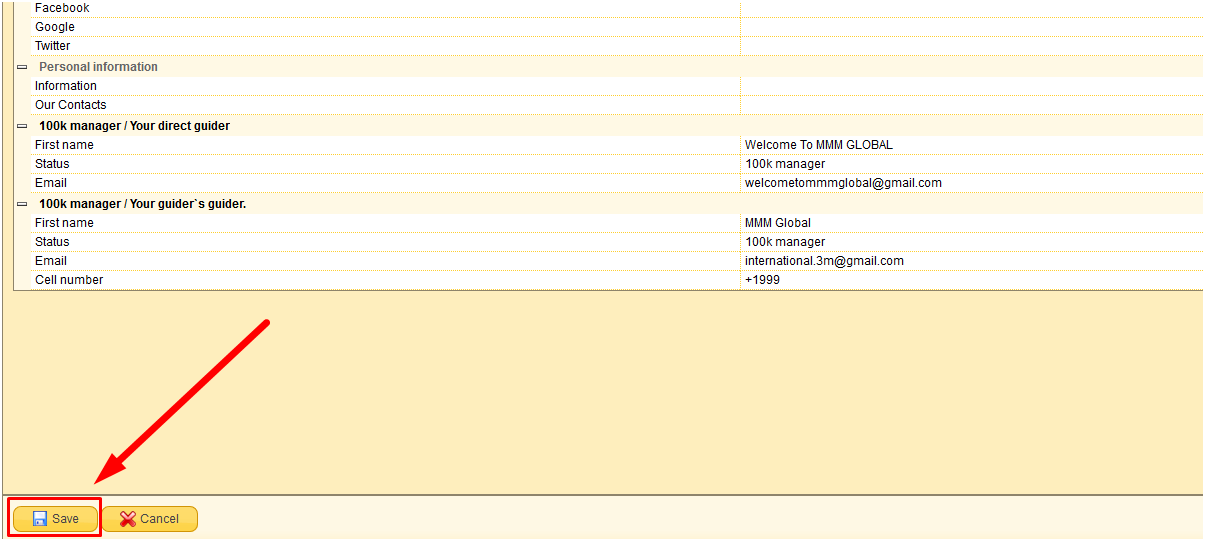
And click “Save” button
24. How to create Bitcoin wallet?
It’s very easy and simple to create and use wallets on BlockChain.info:
- Follow the link blockchain.info/en
- Click on “Wallet”
- Click on “Create a new wallet”
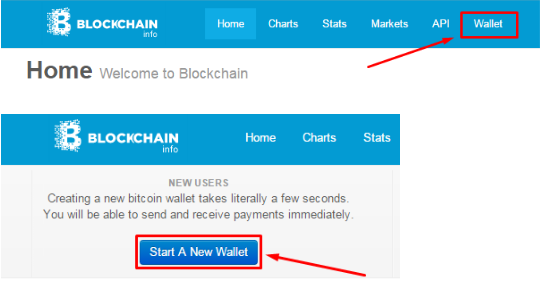
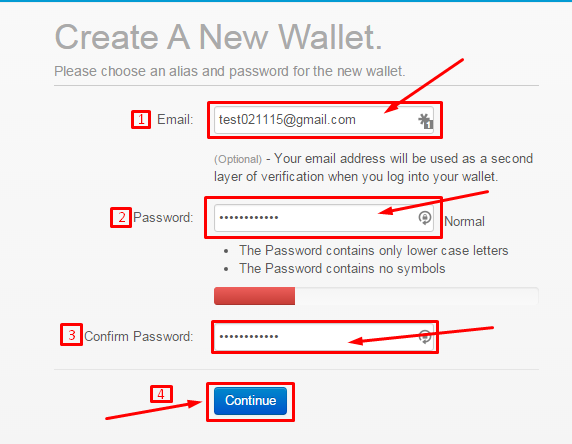
You will be re-directed to the page to create a wallet.
- Introduce e-mail
- Invent and introduce your password
- Confirm the password
- Click on “Continue”
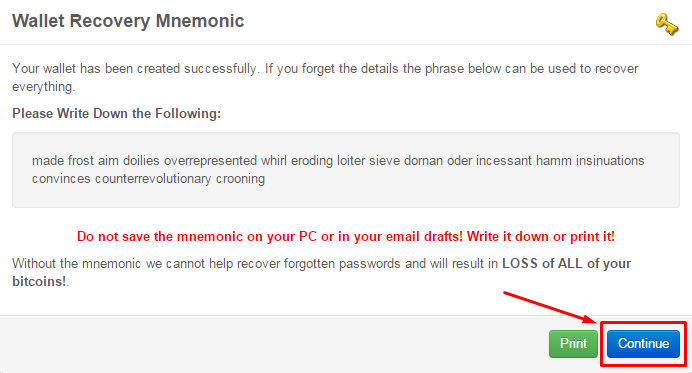
Your wallet will be created. Click on “Continue”
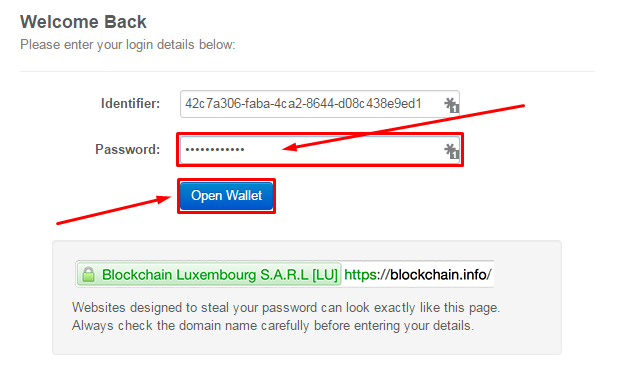
Enter the password and click on “Open Wallet”. (Don’t forget to put down your identifier)
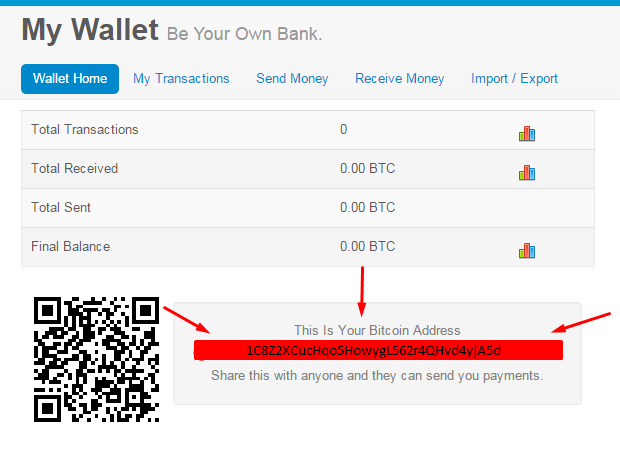
Now, you can see your Bitcoin Address. You can get payments to this wallet.
25. How to acquire Bitcoins?
There are many different websites where one can purchase bitcoins for local bitcoin exchanges or US dollars for international bitcoin exchanges.II. Another popular website for the creation of Bitcoin wallets — https://www.bitgo.com/.
Malaysia bitcoin exchanges set reasonable prices and the services are easier. For international bitcoin exchanges, you need to pass more difficult verification process and you need to pay in US dollars (with payment card or bank wire).
Buy Bitcoins with Ringgits: (Beli Bitcoins dengan Ringgit)
- LocalBitcoins.com
https://localbitcoins.com/country/MY
This is a platform where bitcoin buyers and sellers meet online and enter into a transaction without going through much rigid KYC (Know-Your-Customer) procedures as customarily required by exchanges. Be careful and only buy from traders with good reviews
Guide for Localbitcoins:
- BitX
https://bitx.co/my
BitX operates Bitcoin exchanges in several countries around the world.
The BitX Exchange is a market platform where people can buy and sell Bitcoins using local currency, securely and easily. People place orders to buy or sell Bitcoins at particular prices into the system. Whenever a buy order matches a sell order, a trade occurs. BitX takes care of clearing the trades so that there is no risk of counterparty default.
Guide how to get started: https://bitx.freshdesk.com/support/solutions/folders/1000211439
Buy Bitcoins with US dollars:
- Bitstamp
http://bitstamp.net/
Very popular website. One of the biggest Bitcoin exchanges in the world. The prices are low. But you need to send money in US dollars via bank wire transfers.
Registration:
Verification of the account:
- ANX
https://anxbtc.com/
A multi-currency online Bitcoin exchange platform supporting all major global fiat currencies. Based in Hong Kong.
Guide:
- Cex.io
https://cex.io/
Trading platform which accepts payments via bank wire transfers and payment cards (Visa and MasterCard).
Guide:
https://cex.io/guide
Note: Bitcoin exchanges may ask you to send high quality pictures of your ID and proof of residence document to verify your identity.
26. How to Transfer Bitcoins from One Wallet to Another?
Now all you need to do is to send the bitcoins from your wallet to the one provided by bitquick.in. To do that you need to log in your blockchain wallet then:
- — click on Send Money
- — Introduce the Bitcoin address provided where you need to send the BTC (like the one above)
- — introduce the amount of Bitcoins you want to send (in our case -1)
- — Click Send Payment.
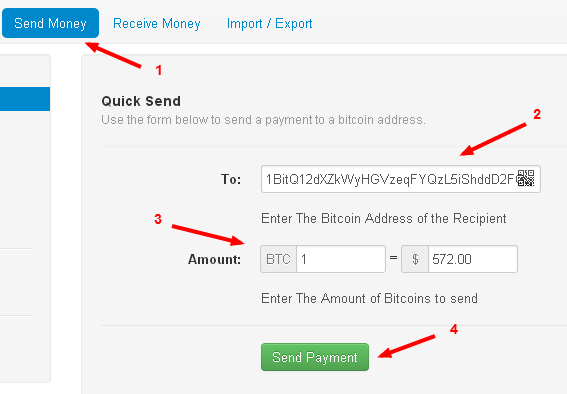
Done!! All you have to do now is wait when the buyers are going to transfer the money into your account.
II. Also Bitcoins can be easily transferred via Bitgo.
- Click on the name of the wallet on the main page. Go to the "Send" section
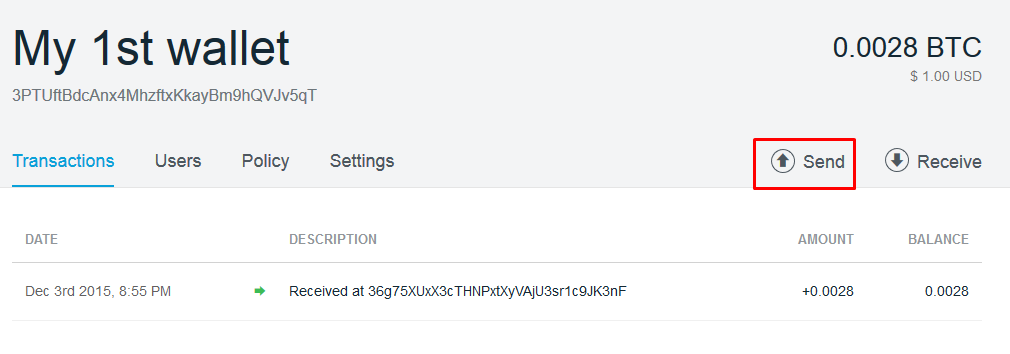
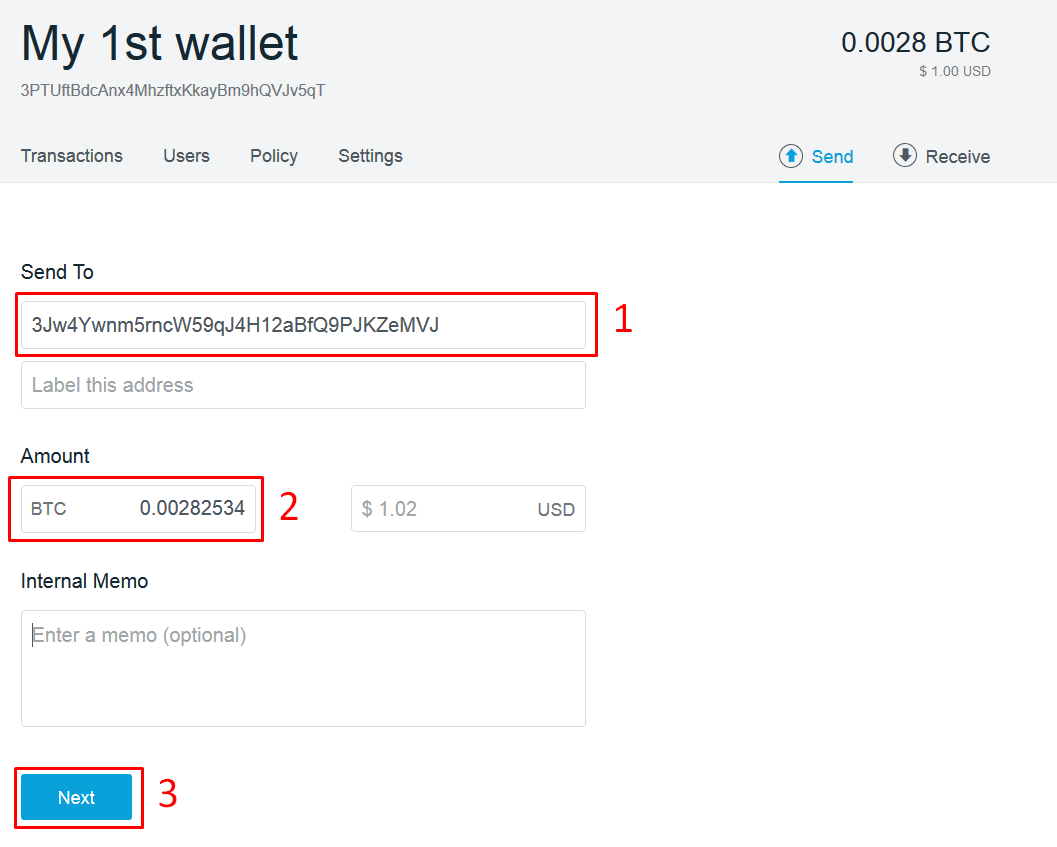
- Fill in recipient's address (field 1), Bitcoin amount (field 2) and push "Next"
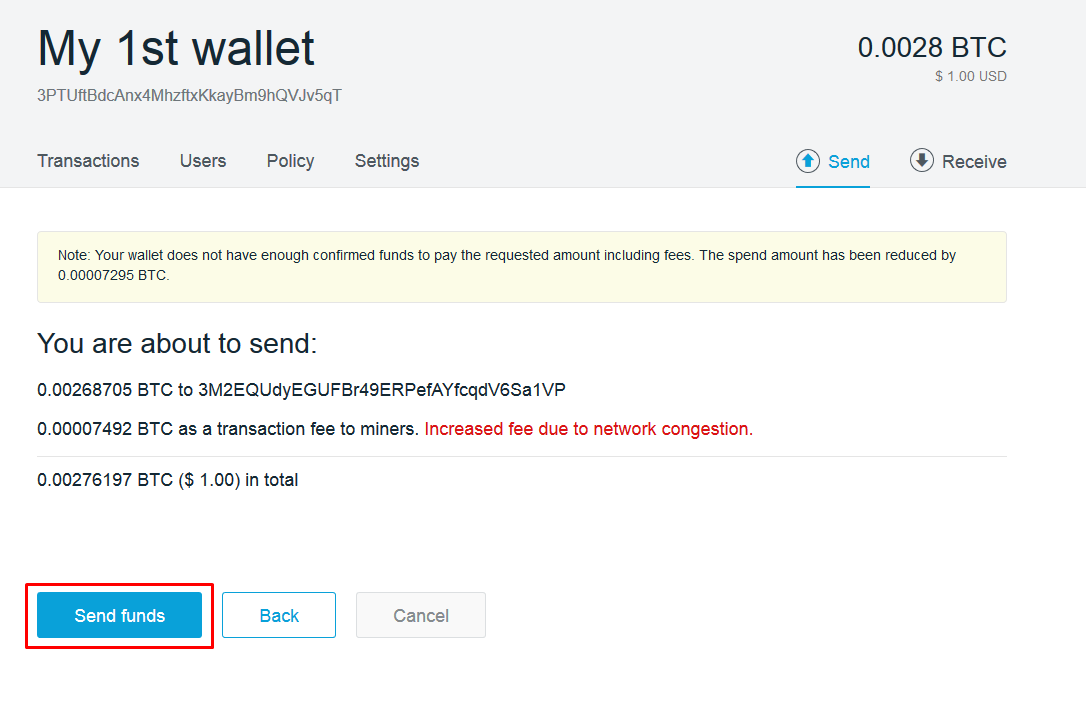
- You will be asked to verify transaction details. If everything is correct — click “Send funds”
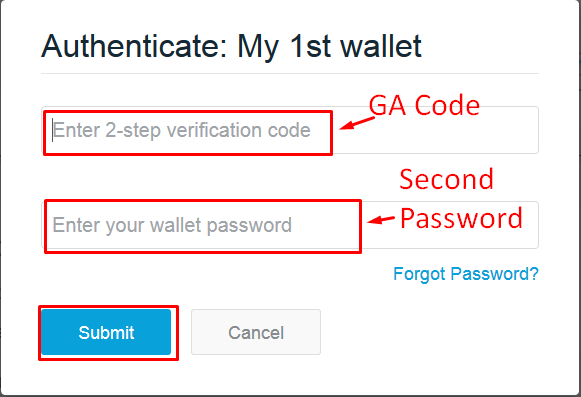
- To carry out transaction — type 2-step verification code (in this guideline we used Google Authenticator). As well enter the password of your wallet.
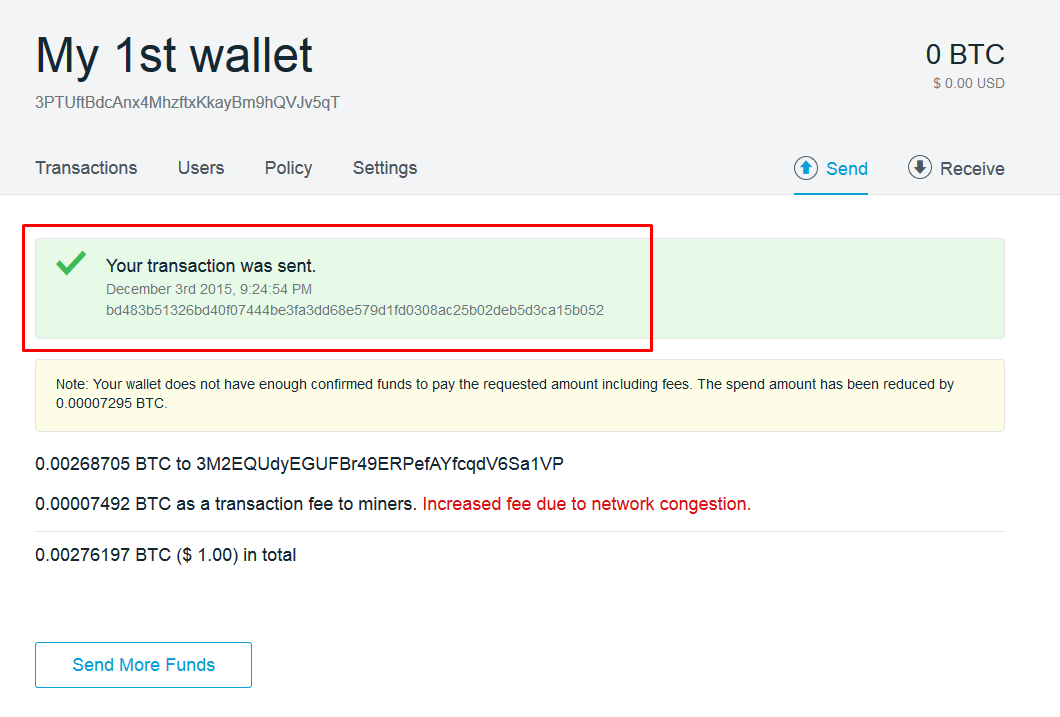
After entering a correct password you would see the confirmation that transaction was sent saccessfully.
27. How to Sell Bitcoins?
In order to sell your Bitcoins on the localbitcoins.com website you will need to have bitcoins in your Localbitcoins.com wallet. In order to send bitcoins from your Blockchain wallet to another please check the above description called “How to send Bitcoins from your Blockchain wallet to another”.
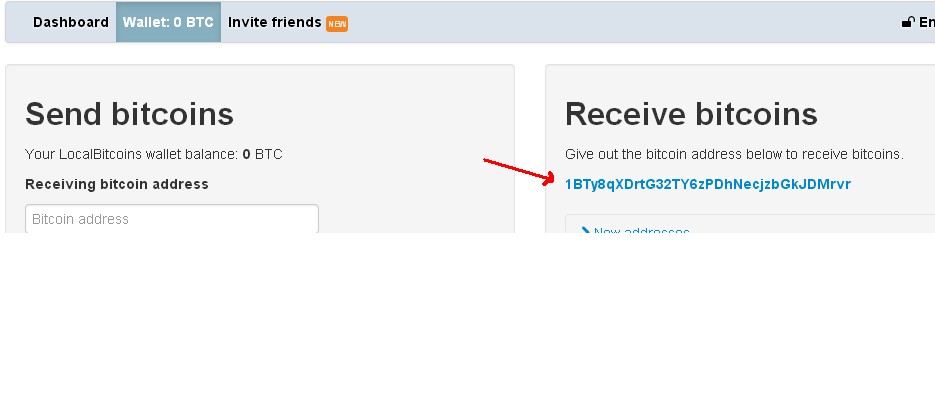
The local bitcoin address can be found by clicking on the “Wallet” button, under the “Receive bitcoins” sign (as shown in the image below):
After you made sure to have the required amount of bitcoins in your wallet, follow the next steps:
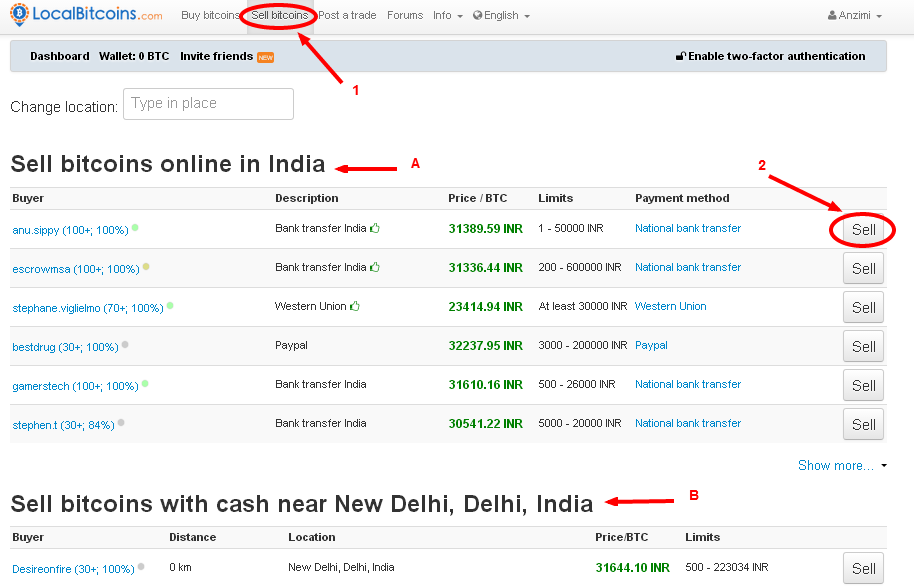
- Click on “Sell bitcoins” button on the top of your page
- Choose the preferred Buyer from the list provided and click “Sell” button. There are 2 options as well — either sell it online — A, either in cash — B.
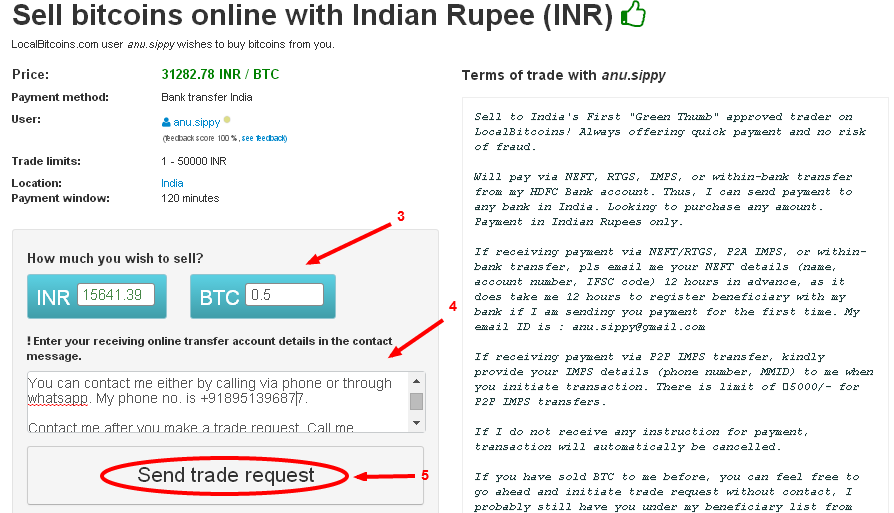
- Enter the amount of BTC you wish to sell
- Enter your receiving transfer online contact details in the message box and other details for the buyer to see.
- Click on “Send Trade Request” button
When the buyer will make the payment and press the “Mark payment complete” button, the required amount of bitcoins will permanently be reserved in the escrow. From that point, the deal can no longer be automatically cancelled.
After you confirm the payment has arrived on your account, you will need to release the bitcoins.
Done!
